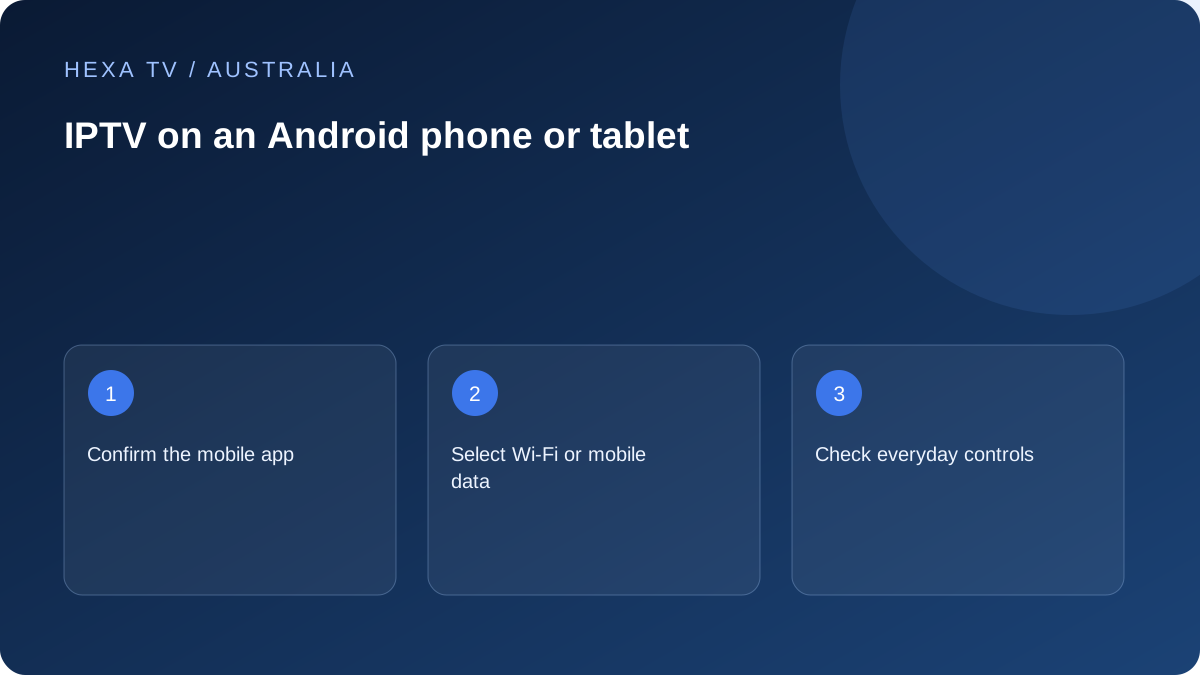
Decide where mobile viewing will happen
A tablet on home Wi-Fi and a phone travelling on mobile data need different allowance checks. Identify the intended use before leaving automatic quality settings running for a long session.
Choose the publisher-supported mobile player and verify its system requirements, then add the account privately.
Test mobile-specific controls
Check rotation, touch navigation, subtitles and the headphones or speaker actually used. Note whether playback resumes after a normal interruption such as switching apps.
If casting to a TV is required, verify that feature with the intended receiver instead of treating local phone playback as the completed test.
Keep account and data limits separate
The provider's concurrent-stream rule applies independently of the mobile plan's data allowance. Stop another account session if needed before testing the phone.
After a diagnostic hotspot or mobile-data session, confirm the device has returned to the intended network. Use measured usage or the data formula to assess cost; do not guess from the label HD or 4K.
Plan around the phone's actual job
For an Australian household, a handset might be the only screen on a trip, a second screen at home, or the remote for a receiver connected to the television. Decide which case you are setting up. A successful touch-screen session answers the first case, but says little about remote navigation on a TV or a second concurrent session.
Make a short requirements list: the exact Android handset or tablet, the account method, the programmes needed and any accessibility controls. Include whether a mobile connection will be used. This is more useful than selecting software because its promotional screenshot shows a large channel count.
Establish a trusted download path
Open the provider's documented software instructions and identify the publisher. Compare that identity with the official app-store listing available on your device. If several apps have similar names, stop and clarify which is supported before adding a credential-bearing URL.
Look separately at the software licence and content subscription. A payment requested inside a player may relate to the player, not to the programme account. Retain the receipt with the right supplier. If installation requires an unsupported package or a request to defeat device protection, seek a documented supported route instead of assuming every Android phone should accept it.
Test touch controls and accessibility together
Use one confirmed available programme to check that controls remain usable in portrait and landscape. Try the subtitle and audio-track selectors if the source supplies those tracks. Adjust text and sound for the normal viewing position rather than judging only the picture in a demonstration.
If you use Bluetooth headphones, connect them before opening the programme and verify where sound emerges. Later, disconnect them deliberately and check that audio returns to the intended speaker. A routing problem after a call or accessory change is a different observation from a programme that never supplied an audible track.
Understand the home-to-mobile handover
At home, the phone may use Wi-Fi through an nbn-connected router. Away from home, the same app uses a mobile service with its own allowance and coverage. Neither the nbn package nor a stable TV session establishes performance on that mobile path.
Before a long session, check the current connection and any app-level cellular restrictions. Review the operator's plan information if tethering or extended video use is intended. When reception changes during travel, prioritise safe use and record the symptom later; do not repeatedly manipulate settings while moving through a situation that needs your attention.
Treat casting as a separate output route
Check both the application's supported casting method and the receiver's exact model. The receiver may retrieve the programme differently from the phone, and the service may apply separate output restrictions. Do not equate screen mirroring, a cast button and an independently installed TV application.
Start playback locally, then test the supported external route with the same programme. Record whether the receiving device appears, whether it accepts the connection and whether playback begins. That three-stage description helps distinguish discovery, connection and playback failures. Stop an old session before starting another when the account allowance requires it.
Use Android recovery steps in a measured order
An application that refuses to open needs a different check from a source that buffers after opening successfully. Google's official Android article covers restart and update checks and explains that settings can vary by handset. Use those supported controls instead of copying a menu sequence from a different brand.
Preserve the app version and error first. Close and reopen, restart the phone when appropriate, and check official updates. Before deleting storage or uninstalling, make sure private account details can be recovered. If only that app fails, its developer may be the appropriate contact; if several networked apps fail on one connection, include that wider pattern in the report.
Retain broadcaster apps as independent services
ABC iview and SBS On Demand have their own supported-device lists and catalogue rules. Their official Android applications can be useful separate routes for content they make available, but they do not certify another provider's offer.
For a family setup, label app icons or favourites clearly enough that people know which service they opened. Record the real application name when describing a missing programme. This prevents a provider receiving a catalogue complaint that actually belongs to a broadcaster account or an unsupported casting route.