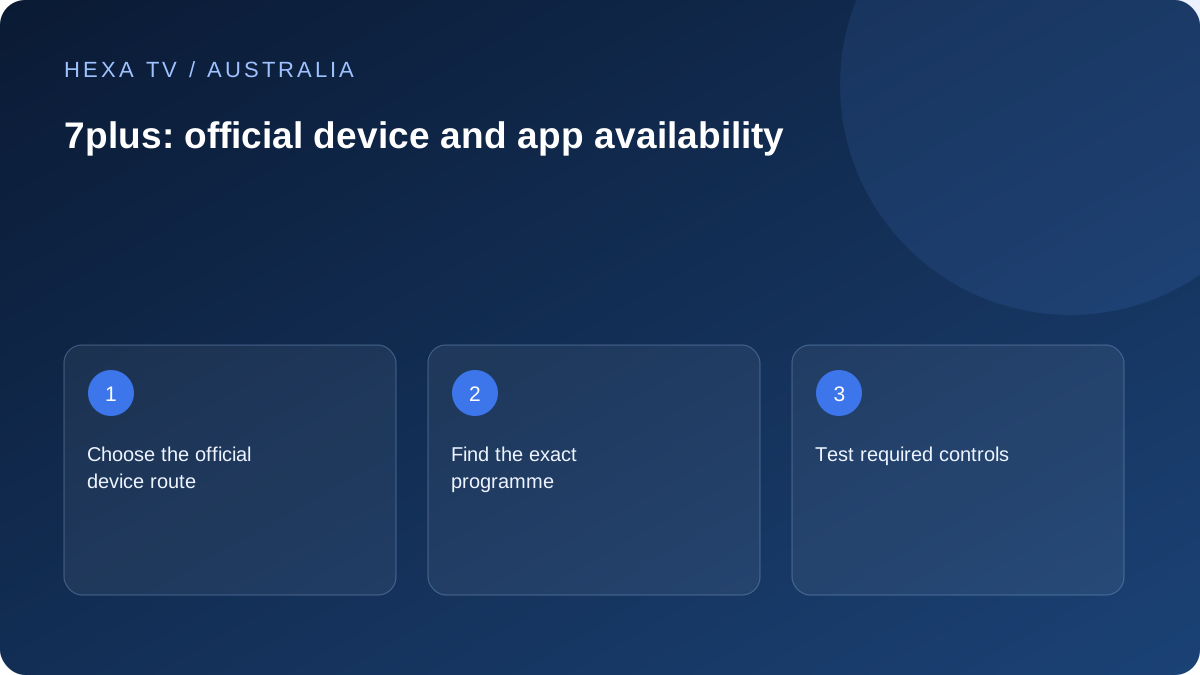
Find the official route for your device
The 7plus help article lists ways to access the service and distinguishes computer viewing through its website from device apps. Use the current instructions for your hardware and confirm the publisher when installing.
Record whether you are using a browser, built-in TV app or separate streaming device. That distinction matters when reporting a fault.
Check the actual viewing requirement
Search the title, episode or live source and inspect its current availability. A broadcaster brand on a TV home screen does not establish that every event, replay and language option is included.
Test subtitles and the remote controls you need. If one programme fails, compare another available item before changing home-network equipment.
Use a precise support record
Include the programme, time and timezone, device model and app or browser version. If the website works but a TV app does not, state both results rather than describing the entire service as unavailable.
This page provides a route to 7plus's official information. It does not establish any 7plus or Seven content entitlement in a HexaTV account.
Choose the official 7plus route for the screen
7plus's access guidance distinguishes television and mobile apps from computer viewing through its website. Use the verified store on the actual device and check the publisher. A television brand appearing in a broad device list is a reason to inspect the detailed model requirements, not proof that every older model can install the current app.
For a laptop, begin with the official website in a supported browser rather than searching for an unofficial desktop installer. For a television, record whether you are using the built-in app, a separate streaming device or a supported casting path. Those routes can differ in controls and troubleshooting needs.
Check the programme, not just the channel brand
Write down the exact programme or event and whether you want live viewing or an on-demand replay. Search its current official listing and inspect the available episode or live option. An older bookmark, promotional graphic or channel logo is not a promise that every edition remains available.
If the programme is essential to the household, repeat the check on the device that will actually be used. A successful laptop visit helps with availability research but does not prove the television remote, app or accessibility controls will meet the viewer's needs. Keep programme availability and device usability as separate results.
Verify caption availability at episode level
7plus publishes device-specific closed-caption guidance and indicates that availability can differ between live and on-demand material. It also describes a caption indicator for episodes that offer the feature. Use that information to inspect the actual title instead of assuming a general app setting guarantees captions.
Open a suitable programme, select the available caption control and view it from the normal seat. Check legibility and timing. If the feature is missing, report the exact show, season or episode and the device; the support team needs more than a statement that subtitles do not work on the television.
Use a small support decision table
The same account can encounter different problems at different stages. Describe the first failed action rather than calling every issue buffering.
| First failure | Useful comparison | Information to include |
|---|---|---|
| App cannot be found | Official supported-device information | Exact model, operating system and store region |
| Sign-in cannot complete | Official account recovery or activation instructions | Error wording and the stage reached |
| One item will not play | Another currently available item | Programme and episode identifiers |
| TV fails while browser works | Same item on the same household connection | TV app and browser versions |
| Captions missing | Programme indicator and another captioned item | Device, requested feature and selected track |
| Playback stops across several apps | Household network and retail-provider status | Devices affected and local time |
Avoid turning one app fault into a whole-house reset
If the television remains responsive and other apps work, follow the publisher's app-specific guidance first. Record the version and preserve the account recovery route before clearing data or reinstalling. A restart and a data reset are not the same operation; the latter can remove sign-in and preferences.
If multiple unrelated services fail on more than one device, the household connection becomes a more useful area to investigate. Give the retail internet provider that wider pattern. A single 7plus programme failure, by contrast, does not establish that an nbn plan upgrade is needed.
Use the result in a broader viewing plan
Keep 7plus listed as its own official service in the household's app map. If it supplies the programme you want, record the supported route and controls. Do not treat success there as evidence that the same content or feature is included in a third-party subscription.
For a family using several broadcaster apps, a simple guide to which programme is found where can be more useful than one enormous channel list. Include the remote or input only when it differs. Keep account details private and make the ordinary viewing instructions understandable to the people who actually use the screen.