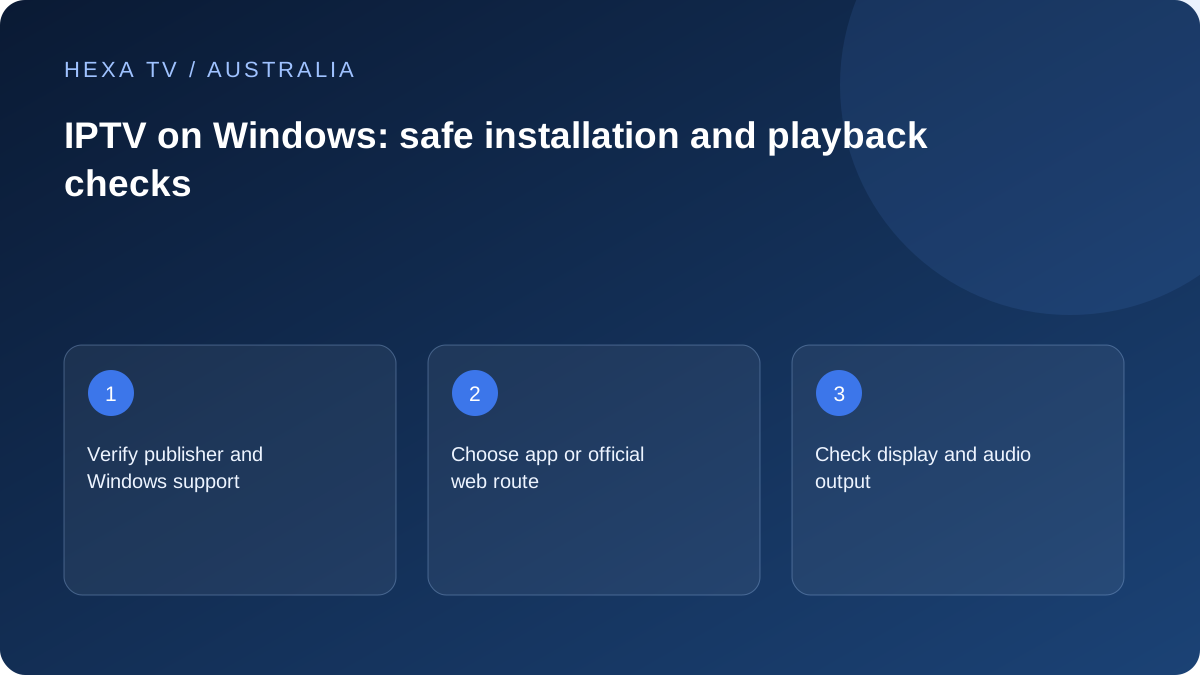
Choose the Windows route deliberately
Use the provider's official web player if it supplies one, or a supported desktop app from its verified publisher. Record which route you choose and the Windows version.
Microsoft's installation guidance is the starting point for software management. A managed work computer may have separate restrictions that should remain under its administrator's control.
Test the laptop before the television
Confirm picture and sound on the laptop, then connect the intended external display. Check the selected audio output after HDMI is attached; the picture and audio destination can change independently.
A fault only on the television should be recorded as an external-display result, not as a failure of every Windows viewing path.
Prepare an ordinary session
Use the intended power arrangement and check supported sleep and display behaviour. Save the app or browser version and the exact action that causes any fault.
If only one programme fails, compare another available title before changing the computer configuration. Keep account secrets out of browser-history and settings screenshots sent for help.
Choose a supported workflow before downloading software
For a Windows PC in Australia, decide whether the provider supports browser viewing, a named desktop player, or both. A broadcaster website and a third-party account portal are separate services even when they open in neighbouring tabs. Write down the intended route so troubleshooting does not drift between them.
Confirm the operating-system requirements and the publisher's identity. On a work or school computer, software controls are part of the managed environment; ask the administrator rather than attempting to bypass them. A media app that requires unexplained security exceptions needs verification before you provide a private account.
Create a three-stage acceptance check
First establish that the application launches or the supported website opens. Next confirm that the account signs in and displays the expected catalogue. Finally try a programme the provider says is available. Save the stage at which anything fails.
This sequence is useful because an empty account view, an installer failure and a playback error are not interchangeable. For each failed stage, capture the visible wording without the account secret. If the first programme fails but another works, keep both names and times for support rather than rebuilding the entire PC.
Treat a television connection as extra hardware
Use the PC's normal display to obtain a baseline before connecting an HDMI television or docking station. Check the device documentation for the output and adapter capabilities. With the new display attached, make sure ordinary Windows content is visible and then inspect the selected sound output.
A blank protected programme on an otherwise working external display may need app or service guidance. Do not infer from the connector fitting that all output formats and permissions are supported. If you change a picture mode during an approved check, keep its previous value so the normal desktop setup can be restored.
Check the nbn path reaching the computer
A computer connected by Ethernet to the router has a different local path from a laptop at the far end of the house on Wi-Fi. Record which path is actually used. The retail broadband product describes the service to the premises, not every wireless link inside it.
For an intermittent fault, note other household demand and the time it occurs. Run speed tests separately from the playback observation because they create traffic. If the issue is confined to one programme while ordinary services work, changing the nbn plan is not yet an evidence-based response.
Distinguish app repair from deleting its configuration
Microsoft documents repair options for some applications; availability depends on the program. Read the current official guidance for the installed Windows version and check whether the relevant option exists. Do not follow a screenshot from another version as though the controls must match.
Preserve the app identity and error before recovery. A reset or uninstall may discard saved configuration, so make sure the content account can be recovered through a private verified route. Avoid downloading a supposed universal streaming repair tool or codec bundle from an unrelated advertisement. Neither is a substitute for the publisher's supported requirements.
Account for laptop power, sound and peripherals
A laptop used as a living-room player may be connected to power, a dock, a television and wireless headphones at the same time. Check those components deliberately rather than introducing them all during the first test. When a problem appears only after adding one, record that boundary.
If playback ends when the lid closes or the computer sleeps, use the manufacturer's power guidance. If sound moves after headphones connect, inspect the intended audio route. These observations can be resolved at the PC setup level without buying additional content access.
Record the result for shared household use
Write a short operating note: the legitimate app or website, how to select the television input, the normal audio device and how to return to ordinary computer use. Keep passwords out of that note. A repeatable household workflow matters more than an impressive one-off full-screen demonstration.
For ABC iview, SBS On Demand or another broadcaster, consult its own current browser and catalogue guidance. Those services are not automatically bundled with a third-party player. When seeking help, name the specific service and whether you used a browser or installed application, alongside the actual PC and connection details.