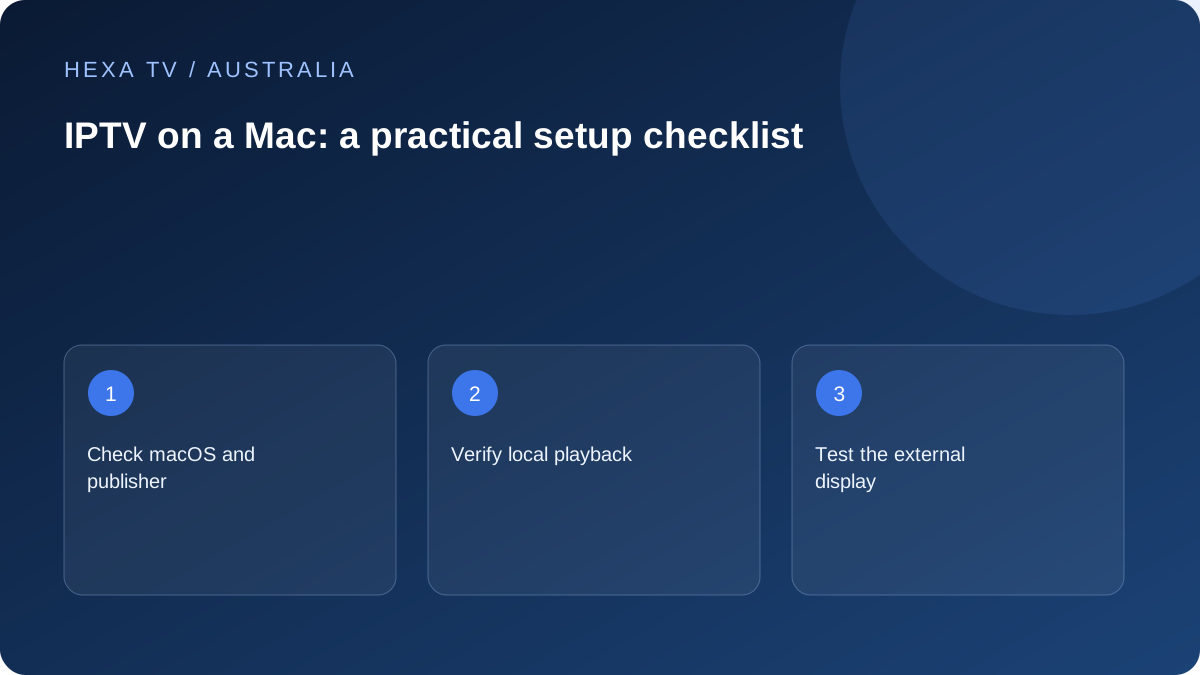
Start with the supported Mac version
Verify macOS requirements and the publisher's official distribution route. An iPhone app or a player demonstration on Windows does not establish the Mac setup.
If an official browser option exists, record its supported browser and account method separately from a desktop player.
Use a two-stage display check
First confirm playback with the Mac's own display and sound. Then test the adapter, television and chosen audio output as a second stage.
This makes a missing picture on the television easier to distinguish from a source that never plays anywhere. Keep the working local path available while investigating.
Document the useful configuration
Record power and sleep behaviour for the intended session, the app or browser version and any external equipment. Follow the Mac and adapter manufacturers' supported settings.
A configuration export can contain private URLs. Store it privately and send only redacted fault details through official support rather than forwarding the entire setup.
Choose the Mac route from current requirements
Begin with the model and macOS version, not merely the Apple logo. Ask whether the service supports a desktop app, a browser, or a documented external-playback arrangement. Those routes can have different requirements and controls.
Verify the publisher through its own site or official store listing. Check any software fee before importing account details. The ability to install an app proves only that installation stage; it does not confirm the provider's Australian catalogue, distribution authorisation or simultaneous-stream allowance.
Use a staged setup that preserves a working baseline
Keep the first session on the Mac's ordinary display and audio output. Sign in through the documented method and try a programme confirmed as available. Check navigation, captions and the required sound track before attaching television accessories.
Once that baseline works, add one external component at a time. This means a later problem can be described precisely: the Mac screen worked, but the television output did not; or the picture remained stable until a particular audio route was selected. These are useful observations rather than invented performance claims.
Check the adapter and display chain
Mac port capabilities vary by model. Apple's official identification guide directs owners to the machine's specifications, which should be checked alongside the display and adapter requirements. Do not buy solely because an adapter's connector shape looks correct.
If a dock, adapter, receiver and television are all involved, write down the chain in order. Confirm that the desktop reaches the television before testing a programme. Check sound independently. A failure confined to protected content may require the app publisher's output guidance even when the ordinary desktop is visible.
Account for the connection inside the home
An nbn retail service and the Mac's local network link are different parts of the path. A laptop in a back room on Wi-Fi may behave differently from the same machine near the router or on a supported Ethernet adapter. Record the actual arrangement when you report interruptions.
If a practical wired comparison is available, keep the programme and application unchanged. Do not run a speed test at the same time and then call the result an undisturbed viewing baseline. Where the source alone fails while other services remain normal, preserve that distinction before considering new network hardware.
Choose an app or browser recovery branch
For an installed Mac application that stops responding, Apple's official guidance covers reopening, restarting and checking for updates. Save the app version and error before applying changes. Use the ordinary quit control when possible; force quitting is for an unresponsive application and can discard unsaved work.
A browser-specific error belongs to a different branch. Identify the supported browser and affected site before clearing anything. Avoid removing all browser data or disabling system protections as an unstructured experiment. If the provider recommends a targeted reset, understand the sign-out and recovery implications.
Keep account recovery ahead of reinstallation
An uninstall can remove local preferences and saved configuration. Confirm that your private account details and any licence record are recoverable through the legitimate suppliers. A screenshot shared for help should not expose the complete playlist or a token in the address bar.
If the application alone is affected, provide its publisher with the model, software version and reproducible action. For a single failing title, include its name and time for the content provider. Reinstalling macOS or buying a different subscription is not a proportional first response to an isolated playback fault.
Build a comfortable shared viewing arrangement
Use the power and sleep behaviour supported by the Mac and its display arrangement. Check that the computer has ventilation and that the cable route is safe. If the household needs a television remote rather than a keyboard at the sofa, include that usability requirement when comparing an external streaming device.
Official Australian broadcaster services remain separate accounts and catalogues. A Mac browser session with ABC iview does not establish third-party player inclusion. Keep the actual app or website name in any household instructions and support report so the right supplier receives the question.