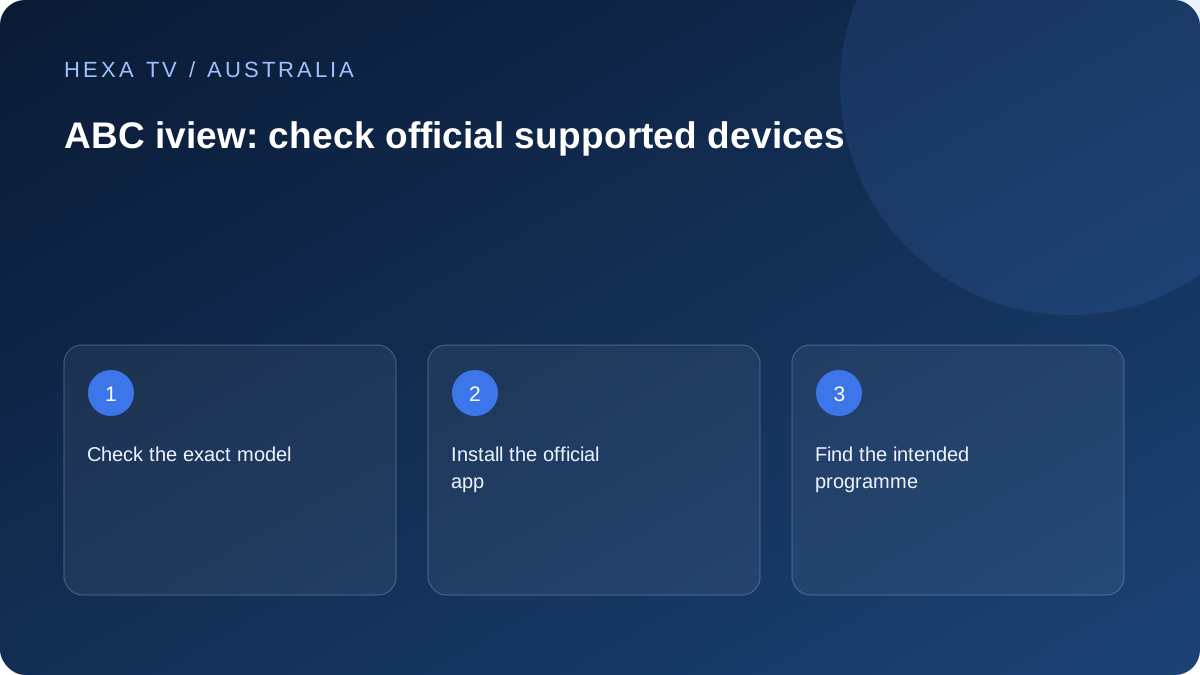
Use ABC's current support list
The ABC help page identifies supported television and streaming-device families and asks viewers to check their exact model before purchase. It also explains that device support can be retired as technology changes.
This guide avoids reproducing a fixed model-year table that could quickly become stale. Follow the current ABC page and the official app listing for your device.
Check the programme and account path
Find the exact programme in ABC iview and distinguish live from on-demand viewing. Follow the account sign-in or device-linking instructions shown by ABC, keeping any activation code private.
Test the controls the household needs, including subtitles, the remote and returning to the programme after leaving the app. A successful installation is only the first step.
Keep overseas and third-party claims separate
ABC's help information distinguishes domestic app availability from a curated website collection available internationally. Do not infer that the entire Australian catalogue travels with the account.
An editorial reference to ABC iview is not a claim that HexaTV supplies ABC content. Use the official service to establish what is available before assessing an unrelated subscription.
Use the exact model rather than a brand-level assumption
ABC's supported-device page is the starting point, but the important question is whether iview is available on the device you actually own. Note the full television model, streaming-device generation or phone operating system. Check the current listing before buying a device specifically for iview.
Do not keep a copied model-year chart as a permanent guarantee. Device support can change, and the app installed years ago may no longer represent the current supported route. Save the official source and the date of your check so a later decision has a clear reference.
Separate finding a programme from activating a device
Search for the actual show or episode first and identify whether you need live viewing or on-demand playback. A programme page can remain discoverable even when the desired episode is not currently playable. Read the availability information beside the item rather than inferring it from a search thumbnail.
Then complete the account or device-linking instructions shown by ABC for that route. Keep the device code private and verify the destination before entering it. If sign-in succeeds but the programme fails, retain both outcomes; successful authentication is not the same as successful video delivery.
Check a television session from start to finish
From the TV's ordinary home screen, open iview, find the intended programme and begin playback. Confirm sound, captions where supplied and the ability to move back to the catalogue. Test the controls from the normal seating position so small text or awkward navigation is noticed before the setup is considered finished.
Leave the app normally and reopen it to understand the everyday routine. Do not promise that a particular resume feature or profile behaviour exists unless the current app demonstrates it. This guide provides an acceptance method, not a claim that HexaTV has field-tested each supported ABC device.
Understand what a second-device comparison can show
If a programme fails on a television, a supported browser or mobile app can help establish the scope. Keep the title and timing as close as practical and note the connection used. Stop other sessions when relevant account conditions require it.
If the phone uses cellular data while the television uses home Wi-Fi, two conditions changed. Record that limitation. A result on one device can help support choose a next step, but it cannot by itself prove that nbn, the router or the TV application is responsible.
Prepare the right evidence for ABC support
Collect only details relevant to the fault. Avoid sending passwords, activation codes or an entire browsing-history screenshot.
| Symptom | Evidence to retain | Uncertainty to state |
|---|---|---|
| App missing | Model, system version and store listing result | Whether this model remains supported |
| Login does not finish | Stage reached and exact message | Whether another official account route works |
| One episode fails | Programme, episode, local time and another-title result | Whether availability changed |
| Live timing looks wrong | Chosen feed, device timezone and expected bulletin | Whether a regional or live/replay distinction explains it |
| Captions cannot be selected | Programme and available track controls | Whether the feature is supplied on this route |
Keep travel expectations separate from domestic access
ABC's current help distinguishes Australian access from a selected website collection cleared for international viewing. Do not assume an Australian account carries the entire domestic catalogue overseas. Before travel, check the programme and destination through the official guidance.
A device still having the app installed does not settle territory availability. Nor does a third-party player listing an ABC channel establish a lawful substitute for unavailable content. Use the officially available option and record the limit rather than changing location settings to manufacture an apparent entitlement.
Compare iview with other household services accurately
List the needs iview meets today: the actual titles, live route and accessibility features you checked. Then assess any separate paid offer against an additional confirmed need. A broadcaster logo in a sales page is not enough evidence that the paid account includes equivalent programmes or features.
Keep ABC support questions directed to ABC and third-party account questions directed to that supplier. Naming both the service and device in a report avoids confusion. This guide does not claim that a HexaTV subscription includes iview. Any HexaTV subscription payment is separate from the broadcaster's own service.
Dated update notice for Android TV users
ABC published a notice advising users of older Android TV app versions to update by 6 October 2026. Checked on 5 October 2026, the notice directs viewers to the official Play Store update and current supported-device guidance if an update is unavailable. This is a dated service notice, not a claim that every Android TV model stops working.