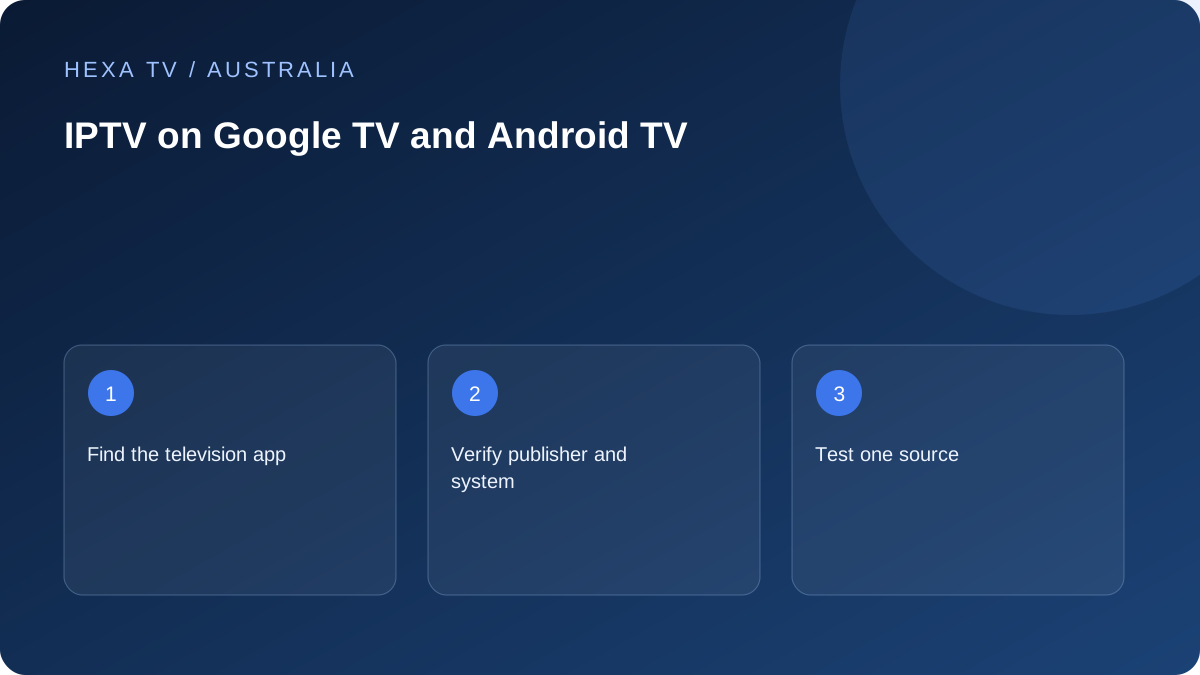
Verify the TV edition of the app
Search Google TV's supported app interface for the exact publisher and player. A handset app is not automatically suitable for a television remote or listed for that device.
Include the model and operating-system version when asking the provider about support. Keep the device's genuine Australian region; a foreign listing does not prove local catalogue entitlement.
Build one small working configuration
Add the content account through the documented method and open an available programme before adjusting the guide or importing extensive favourites. Note whether account, catalogue and playback each succeed.
Use the player's own payment information to identify a separate licence. A store download and a paid content term are different milestones.
Evaluate the household routine
Ask the viewer to find a programme, return to the home screen and reopen the player using the actual remote. Check whether the interface remains readable from the sofa.
If casting is part of the plan, run it as a separate test with the intended receiver. A picture on the phone alone does not confirm the television playback path or the permitted account use.
Document the actual Google TV hardware
Write down whether the household is using a television with the system built in or a separate streaming device. Record the complete model and version. That distinction affects power, HDMI, updates and the route a support team needs to investigate.
An app demonstration on another brand is useful context but not proof for this device. Use current official software availability for the genuine Australian account and the publisher's television requirements.
Compare the required Australian apps before buying hardware
List the player and the broadcaster-operated apps used by the household. Check each on the specific model rather than assuming one successful installation covers all services.
This prevents a narrow hardware decision that works for a proposed subscription but disrupts ordinary local viewing. Include the everyday remote routine and any accessibility needs in the decision, not just a list of installed icons.
Keep installation separate from entitlement
Installing the player establishes that software can be obtained and opened. It does not establish that a content account is included, that the supplied login format is supported or that every catalogue source can be decoded.
Identify any player licence, then use the provider's verified account method. Save a non-secret label and test one available source before adding an elaborate guide or favourites structure. If setup fails, keep the last successful stage in the note.
Choose the next check from the observed stage
These are diagnostic directions, not guaranteed causes or claims about a tested Google TV model.
| Observation | Useful next check |
|---|---|
| App is absent | Exact-model publisher and store support |
| App opens but login fails | Verified method, account state and endpoint |
| Account accepted but catalogue empty | Supported import and account scope |
| One source fails | Another source and supported device |
| Whole interface freezes | Google or manufacturer system guidance |
| Only casting fails | Sender, receiver and supported casting method |
| Second session ends the first | Concurrency and active-session rules |
Evaluate the interface from the couch
Use directional buttons to reach the guide, favourites, track selection and back action. Try the tasks in the order the viewer will perform them each evening. A mobile-friendly screen layout may not be convenient with a remote.
Ask the viewer to reopen the app after returning to another service. Keep the specific obstacle in the result. A simple navigation improvement can be more useful than replacing otherwise adequate hardware.
Set the guide to the real Australian timezone
Verify the device's local clock and region before changing a player's guide offset. Australia has multiple timezones and differing daylight-saving arrangements; a fixed national assumption can produce a misleading schedule.
Compare a familiar current programme and another channel. If all listings shift equally, examine clock and offset settings. If only one differs, source mapping or schedule data may matter. Do not apply the same correction at several layers.
Test the home-network path at the TV
Record whether the device uses Wi-Fi, Ethernet or a mesh node. A phone by the router is not a measurement of this path. If playback is unreliable, keep the source and device unchanged for a supported wired comparison where practical.
Include the usual evening conditions and Australian time in the note. The result helps distinguish local coverage from other delivery problems without assuming that the NBN plan name explains everything.
Maintain the app without erasing useful evidence
Before updating, record the app and system versions and the action that fails. If the entire interface is unresponsive, consult Google's official device guidance; if one app closes, retain publisher-specific evidence.
Know what clearing data or reinstalling will remove. Preserve private recovery details and locally stored favourites through supported means. Do not factory-reset the complete setup as the routine first response to an isolated programme error.
Keep casting, profiles and account sessions distinct
Casting from a phone changes the playback path and may involve separate sender and receiver support. Device profiles and content-service profiles can also have different settings. Test the exact route the household intends to use.
Stay within the provider's connection rules while comparing devices. If a session-limit message appears, end unneeded playback before attributing the failure to Google TV or the home internet service. Record what remains untested rather than supplying a blanket compatibility claim.
Use the failure stage to choose the next question
Before resetting Google TV, write down how far setup progresses. A missing store listing is not the same problem as an installed app rejecting a programme. This small decision table keeps the next support question specific.
| Stage reached | Useful evidence | Question to resolve |
|---|---|---|
| App absent from the local store | Exact TV model, country setting and app publisher | Is this model currently supported in Australia? |
| Installed app will not open | System version, app version and visible error | Which documented app or device recovery step applies? |
| Account opens but one title fails | Title, local time, source and other-title result | Is that programme currently supplied for this account? |
| Playback works but captions are absent | Programme and available subtitle-track options | Does this source supply the needed track, and does the player support it? |