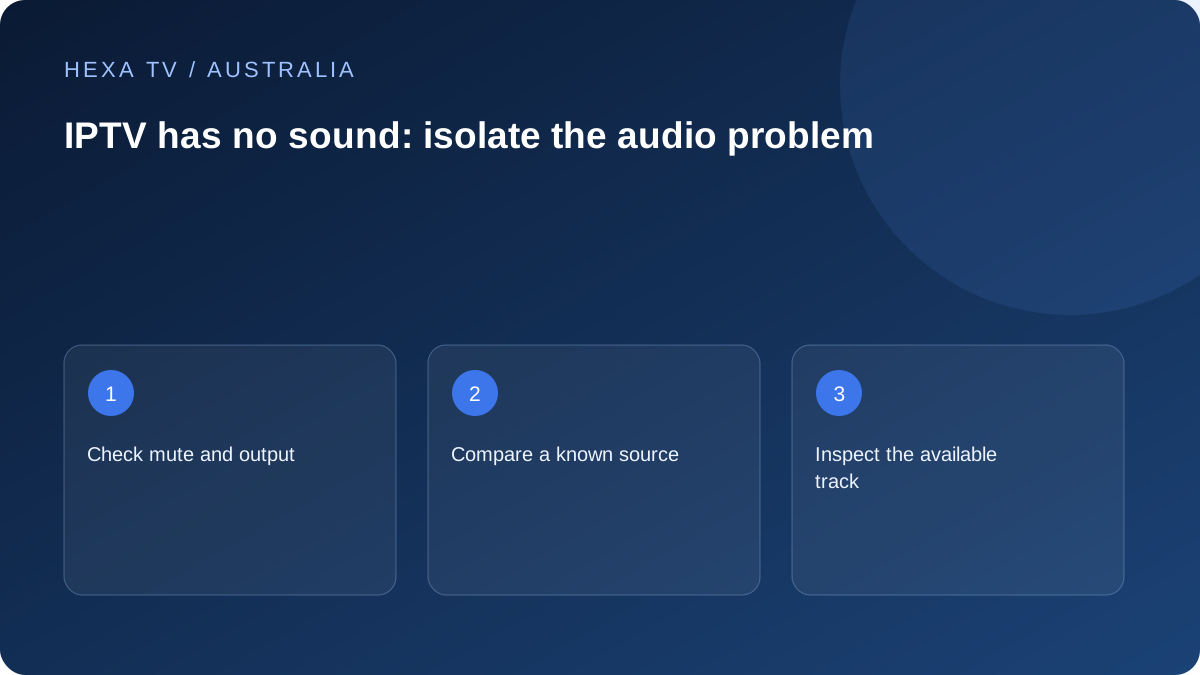
Find a working sound reference
Use TV speakers with a known programme or another app. Check mute, volume and whether Bluetooth headphones or another output remain selected.
If that reference is audible, return to the affected source and note the available audio tracks.
Separate source, app and soundbar
Test another programme in the same player. Then, where practical, compare TV speakers with the intended soundbar or receiver route.
A track failing on one source is a different pattern from every TV input being silent. Keep the exact pattern rather than changing all format controls together.
Give support a complete audio path
Include model names, app version, connection route and which source or track worked. State whether live viewing and replay behave differently.
Use a documented setting change only for the relevant equipment, retaining the original value. A new subscription or faster broadband tier is not a general remedy for an incorrect sound output.
Map the Australian lounge-room sound chain
The player may run inside the television or on an external box connected through a receiver. Headphones, Bluetooth accessories and soundbars can create additional outputs. Write the actual route instead of assuming everything uses the TV speakers.
Test a known audible reference at a sensible volume. An official broadcaster app and a third-party player can use the same speakers through different software paths, so record the app name with each result. This is an output comparison, not proof of catalogue equivalence.
Check the selected destination and its own controls
Look for an accessory that remains connected or a receiver left on another input. Use the device's documented output selection and the remote appropriate to the speaker system. A television volume indicator does not necessarily reveal the level on an external receiver.
Reduce levels before changing routes, because sound may return unexpectedly through another speaker. Confirm the intended output with one programme and avoid increasing several independent volume controls at once.
A practical no-audio decision table
Keep picture behaviour in the report too. Audible sound with a black picture belongs to a different branch from a normal picture with silence.
| Result | Useful next check | Information to retain |
|---|---|---|
| Only one source has no sound | Try another supplied track or programme | Title, track label and local time |
| All sources in one player are silent | Compare another app through the same output | Player version and output setting |
| Headphones work but TV speakers do not | Inspect the selected audio destination | Accessory model and the route selected |
| TV speakers work but receiver is silent | Check supported receiver input and format | Complete cable and equipment chain |
| Every service and input is silent | Use TV or sound-system support guidance | Models, mute state and known audible references |
Treat format changes as controlled tests
A format setting affects what the next device receives. The soundbar or receiver must support the intended arrangement. Use the current instructions for that specific equipment and note the original value before making a documented change.
Apple TV's official no-sound guide and Google's sound guidance provide platform-specific examples, not interchangeable menus for all televisions. Avoid blindly switching every option labelled automatic, passthrough or surround. Test one relevant setting and inspect the same programme afterwards.
Compare the direct television path when supported
If the streaming device passes through an HDMI switch or receiver, a manufacturer-supported direct connection to the TV can reduce the chain for diagnosis. Only do this where the connectors are safely accessible and the equipment instructions permit it.
Write down the original route first so it can be restored. If direct TV sound works, that is useful evidence about the difference in path; it does not automatically identify one broken component. Consult the intermediate equipment's support with the models and observed result.
Check the programme's actual audio options
Language and audio-description choices depend on tracks supplied for that programme. An app can offer a track selector even when a particular source contains only one option. Keep live, replay and on-demand versions distinct when comparing.
If the expected track is missing or silent, report the programme and selected option to the relevant content supplier. If another official Australian service offers the programme with different tracks, that does not prove the third-party source must contain identical options.
Do not turn an audio fault into an nbn purchase
A picture that plays normally while audio reaches the wrong output is not solved by a larger concurrent-stream allowance. Nor does a faster internet tier select the correct soundbar input. Use the observed pattern to decide which layer to investigate.
When both sound and picture stop with loading messages, the buffering branch may be more relevant. Describe that combined symptom rather than continuing to alter audio formats. Matching the guide to the actual fault saves changes that do not address the problem.
Send a time-labelled result to the right supplier
Include the date and Australian timezone, app, device models, programme and output chain. State which alternative was audible and which was silent. Keep account details out of photographs of the settings screen.
A source-track issue belongs with the content provider, while a repeatable output problem may need the hardware or app publisher. Some cases involve both. A clear comparison is a starting point for investigation, not a claim that a particular brand or network has failed universally.