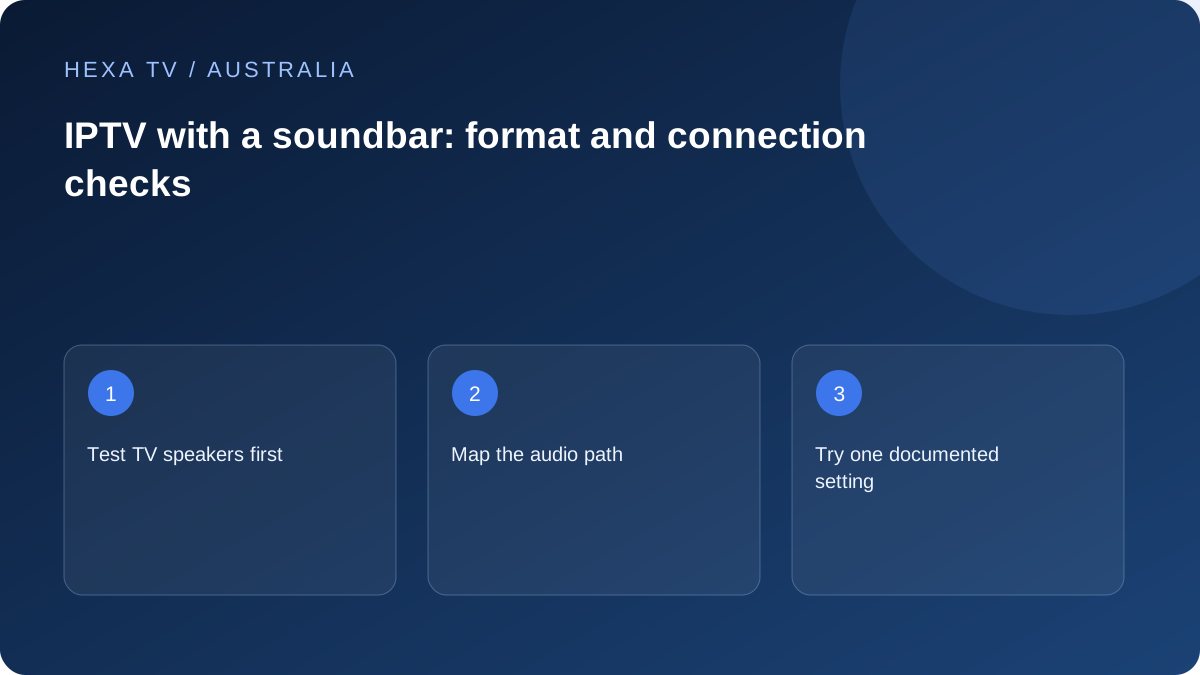
Create a simple Australian living-room baseline
Play an available source through the television speakers and identify the selected audio track. If that has no sound, investigate the source or app before involving the soundbar.
Record a working source so the next equipment comparison has a clear reference.
Map the extra audio stage
Write the physical route: streaming device into TV or soundbar, then the supported connection between equipment. Consult the actual model manuals for return-audio ports and formats.
A similar-looking HDMI socket can serve a different function. Do not copy another television's menu settings as though all models use the same path.
Test one supported setting
Where the manufacturers recommend a simpler output for diagnosis, preserve the original value and compare the same programme. If sound returns, retain the exact combination for support.
For lip-sync issues, compare another source and input. A delay on one programme is different from a delay throughout the entire sound system.
Describe the lounge-room arrangement in plain language
Start with where the streaming device plugs in. If it enters the television first, record how the TV sends sound onwards. If it enters a receiver or soundbar first, record how video reaches the TV. Include any switch or adapter; an omitted accessory can be the very stage support needs to investigate.
Read the socket labels on the actual models and use their manuals. The fact that two cables fit does not establish that the selected ports perform the required audio role. Keep the original arrangement documented before making a supported comparison, especially when access behind the television is awkward.
Find one source that gives an audible baseline
Use a programme available through an authorised source, with a track you can identify. Play it through the TV speakers first. If the app's selected track is silent, compare another available track or programme before changing the soundbar. This avoids making hardware changes in response to one source's missing audio.
Once a baseline works, compare the external audio path using the same item. Note the selected soundbar input and the television's active output. A successful result on a game console or another HDMI input is useful, but it does not automatically validate the streaming device's separate output settings.
Classify the failure before changing its format
Use the closest description below when preparing a support note.
| Description | What to compare | Information worth keeping |
|---|---|---|
| Completely silent on TV and soundbar | Another available source in the same app | Track name and whether the app itself produces sound |
| Audible on TV, silent externally | Documented external-output selection | TV output, soundbar input and connection labels |
| Only one streaming device is affected | Another input through the same sound system | Device model and its audio settings |
| Dialogue and picture do not align | TV-speaker playback of the same scene | Which path introduces the offset |
| Some sounds are present but dialogue is missing | A supported simpler output or another supplied track | Exact format choice before and after |
| Expected surround mode is absent | Source track and all equipment capabilities | What is supplied versus what was merely advertised |
Apply one documented output change
Google TV's audio troubleshooting material distinguishes the connected audio path and relevant device checks. Apple publishes separate Apple TV instructions. Select the guide that matches the box in the lounge room; menu names and available formats differ across products.
If the manufacturer recommends a simpler supported audio format for diagnosis, record the original value, make that one change and replay the baseline. Do not assume that a successful stereo test proves the source never carried surround sound. It only shows that this simpler combination worked; the original chain may still require configuration or compatibility investigation.
Avoid correcting lip-sync in several places
A household can accidentally add delay in the app, the streaming device and the soundbar while trying to solve the same symptom. Before adjustment, record existing values and establish which control is documented for the current path. Change one control, replay the same speech segment and reverse the change if it makes the result worse.
If timing varies by programme, give support the specific examples. If it changes gradually during playback, explain that rather than describing a single fixed offset. If every source and input is delayed only through the external system, focus the report on that shared path. Those distinctions are more useful than a general statement that IPTV sound is broken.
Check the household's final operating routine
After the technical comparison, test normal actions: starting the television, reopening the app, adjusting volume, muting and switching back from another input. Confirm that the sound returns through the intended speakers without a complicated sequence known to only one person.
Keep a short record of the final supported connection and any remaining limitation. For example, a household may prefer a reliable simpler format while the manufacturer investigates an advanced mode. Label that choice honestly; do not claim an unverified surround capability merely because the soundbar's packaging supports it in some arrangements.
Preserve that distinction when comparing a future replacement or asking for technical support.