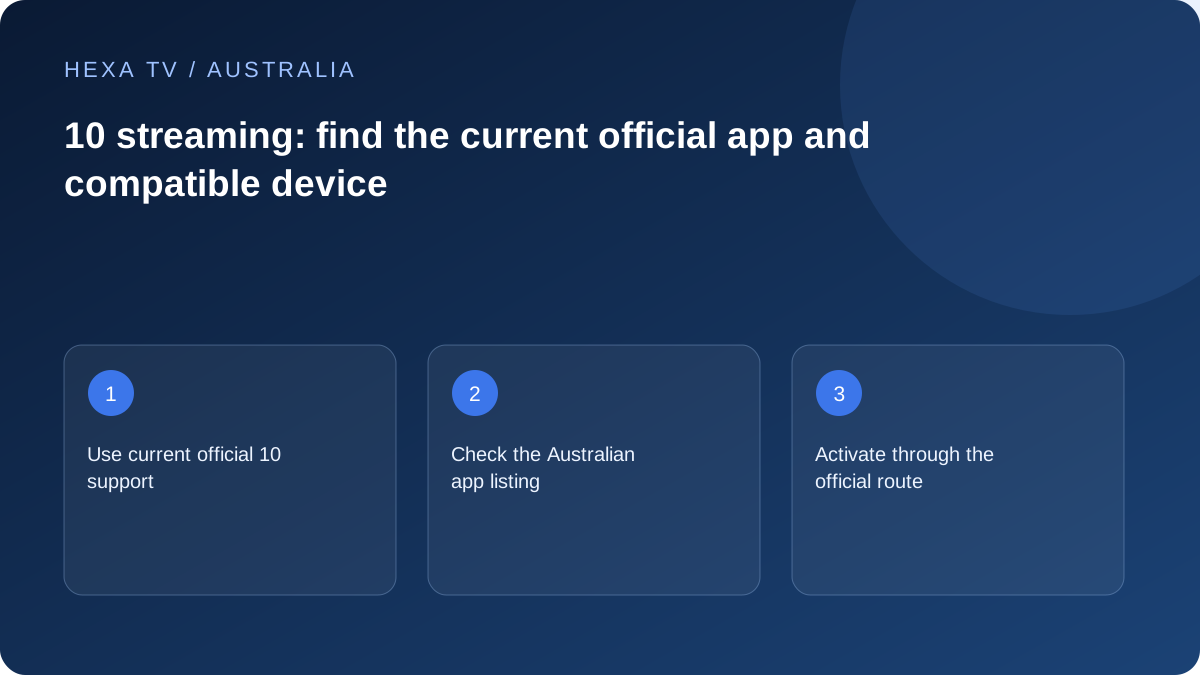
Confirm the current service identity
The official 10 support site links to supported-device and activation instructions. Use those routes and the official publisher listing when searching an app store, rather than assuming any result containing '10' is the broadcaster's app.
The supported-device guidance identifies Australian store availability. This is a regional access check, not a reason to falsify a device or account location.
Check the programme and activation process
Find the specific show, episode or live channel and follow the account instructions shown by the service. Keep a device activation code private and enter it only through the official process.
10's activation guidance says its free ad-supported platform does not ask for card details during activation. Treat an unexpected card request on a lookalike activation page as a reason to stop and verify the destination.
Keep 10 and other subscriptions distinct
Do not assume the 10 streaming service and another paid platform share the same catalogue or account. Check the actual programme route and terms before buying a separate subscription.
This editorial guide does not claim that HexaTV includes 10 content. It helps identify the official Australian option and the device checks needed for it.
Choose the supported screen before beginning activation
Use 10's current supported-device page to check the exact television or external device. The brand name alone is not enough: app versions, model generations and operating systems can affect support. Record which route you are using so the activation instructions match it.
The official activation article distinguishes supported television devices from computer viewing. A laptop does not need to be treated as a television waiting for a device code. If the screen you see does not match the official instructions for your device, verify the app or website before entering further information.
Follow the account-linking sequence on your own devices
The official TV process displays a code in the 10 app and provides a supported route to enter it through the service's activation page or mobile app. Use the current code shown by your own television. Keep the phone or computer signed into the intended 10 account rather than a different household member's account by accident.
A code links a device to an account; it is not something to post in a public support discussion. If the code is rejected, obtain a fresh one through the app's documented process rather than repeatedly submitting an old screenshot. Record which stage fails if the next attempt still does not complete.
Recognise the point where you should stop
10's official activation guidance states that its free ad-supported platform does not ask for credit-card details. An unexpected payment demand during that activation workflow is a reason to stop and verify the destination through the official help site.
Do not follow a lookalike activation advertisement simply because it appears above a search result. Begin from the address or official app process shown in the broadcaster's instructions. If personal or payment information has already been entered on an unrelated site, use the appropriate account or financial-provider support process; do not continue supplying more details to make the activation finish.
| What happens | Appropriate next step | What to avoid |
|---|---|---|
| TV code is no longer accepted | Generate a fresh code through the official app | Reusing a code copied from an old photo |
| Wrong household account is open | Return to the intended official account | Linking first and hoping profiles separate later |
| Laptop asks for TV-style activation | Compare with 10's computer instructions and contact support | Entering information into an unexplained form |
| Activation requests card details | Stop and verify the official destination | Paying an unverified activation fee |
| App is not listed for the model | Check current support and legitimate alternatives | Installing an unofficial package to imitate support |
Check the exact programme after sign-in
Successful activation is only the account step. Find the intended show, season, episode or live source and inspect its current availability. A programme image or a similarly named series is not enough to establish that the desired edition is ready to play.
Use the controls required by the household, including any available captions, pause and navigation. A sign-in confirmation does not prove that those features are supplied for every programme. If a specific feature is essential, test an appropriate item on the actual screen and record the result separately from the activation result.
Prepare a precise playback report
If an available item fails, record its title, episode, the local time and the first visible error. Compare another available programme in the same app. If a supported browser works while the television fails, note both app and browser versions and whether they used the same network.
Do not describe a single programme failure as an nbn outage without checking other services. Conversely, if several unrelated apps fail on multiple devices, that broader pattern is useful to the retail internet provider. Keep the broadcaster's account and programme issue separate from the household network evidence.
Keep the household's accounts and services understandable
Label this route as 10 in the household app map, with the device used and the official recovery route. Do not imply that a separate paid platform, a television-store account or a third-party IPTV subscription automatically shares the same catalogue or login.
If another family member needs help, a short instruction naming the app and programme location is often enough. Store account credentials privately rather than beside the TV. When a device is replaced or given away, use the supported sign-out and account-management process so the next owner does not inherit access.
Recheck compatibility when the setup changes
An app that worked on an earlier device may not appear on a replacement model, and an old television can lose support over time. Consult the current official list at the point of purchase or replacement rather than relying on a remembered brand-level statement.
Where the built-in route is unsupported, investigate a documented supported external device only if it meets the household's needs. Include remote usability, accessibility and the existing audio path in that decision. The purpose is a dependable official viewing route, not accumulating devices because every service uses a slightly different menu.