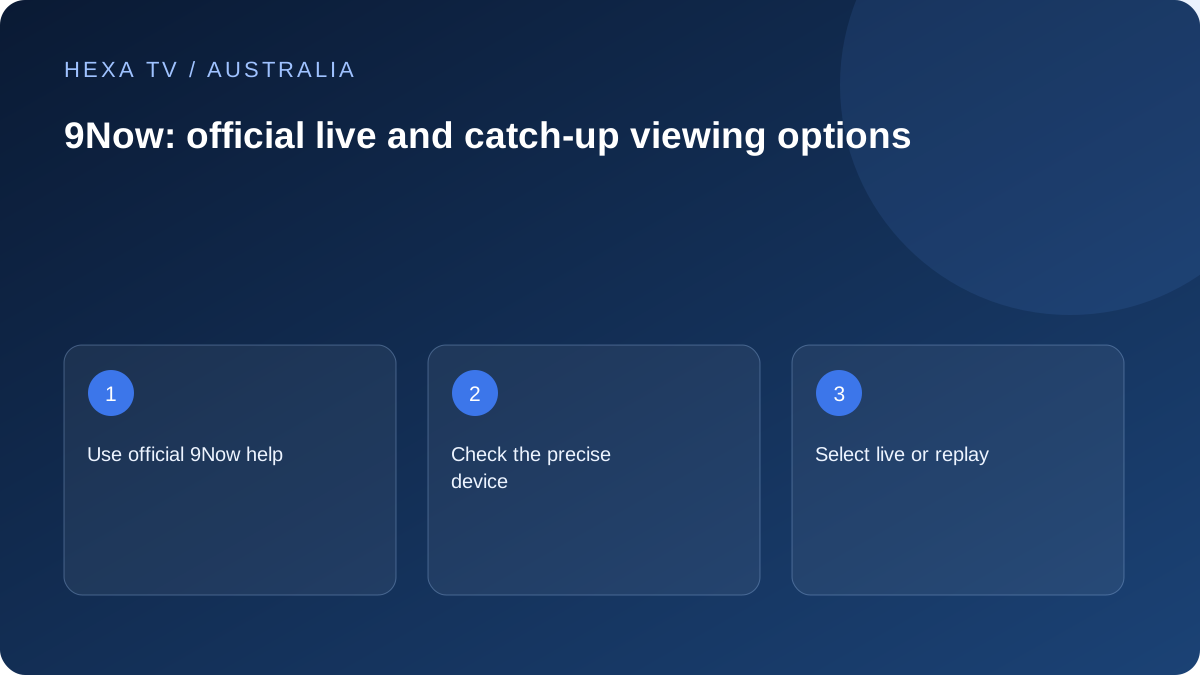
Start with the service and device
Find the official 9Now app or website route for the intended hardware. Confirm the app publisher and supported system before entering account details. A mobile listing does not automatically cover an older television.
Follow the official account or device-linking process and keep activation codes private.
Distinguish live from on-demand
Check the exact programme or live source and its current availability. A replay page and a continuous live stream are different products, and the controls or device support can differ.
Record local timezone when reporting a scheduled programme or comparing guide times. This matters when an account or support team spans Australian states.
Keep the comparison useful
Test another programme on the same app if one fails. Then compare a supported alternative device without changing every other condition. Keep the observed result separate from assumptions about the broadband service.
9Now is an official viewing route considered in this editorial guide. Its mention does not prove inclusion in an unrelated IPTV plan or certify any third-party redistribution.
Identify the particular 9Now experience on your television
Record whether you opened 9Now from a built-in smart-TV app, a Freeview-related interface or an external streaming device. Use the official help route for that arrangement. An activation screen can look similar across devices while the supported instructions and menu labels differ.
The official 9Now Freeview instructions describe connecting a television to a Nine account through the service's own process. Keep that account distinct from a television manufacturer's account and from any unrelated IPTV subscription. The fact that you have signed into the device store does not necessarily mean the broadcaster app is signed in.
Link the television through the official process
For the documented Freeview app route, 9Now displays an activation code on the TV and directs the viewer to Connect Your TV through its official website or mobile app. Use the code currently shown on your screen and follow the confirmation there. Do not give that code to a stranger offering activation assistance.
If the process does not finish, record whether the problem occurs before account sign-in, while entering the code or after the confirmation. Those stages require different checks. Keep the TV on the relevant screen while completing the supported process, and obtain a new code through the app if the displayed one is no longer accepted.
Check live viewing and catch-up separately
Find the exact live channel or programme episode that meets the household's need. A successful replay does not demonstrate that a live source has the same availability, and a live channel logo does not promise every past episode. Read the current programme information shown by the service.
For scheduled viewing, include the actual local timezone when noting the start. If the guide appears wrong, compare the service's current listing and the device clock before changing app offsets. An account used in different Australian locations should not rely on a remembered time from the previous location.
| Task | Check | Useful record |
|---|---|---|
| Start a live programme | Correct channel and current schedule | Date, local time and edition |
| Continue an episode | Exact season and episode in the catalogue | Whether resume works on this device |
| Activate a TV | Official device-specific linking route | Stage reached and error wording |
| Watch with captions | Actual programme and available controls | Device and feature result |
| Investigate one failure | Another available item in the same app | What still works without other changes |
Inspect the practical controls the household needs
Try navigation, pause or other supported playback controls on an available item. Inspect the subtitle or accessibility choices rather than assuming that every title offers the same features. If a viewer depends on a particular control, check it on the actual TV remote.
If the household sometimes uses a phone or tablet, treat that as another supported route to verify. Do not assume that progress, track preferences or account state behave identically across every platform. A short record of the differences can prevent repeated confusion when people switch screens.
Troubleshoot without erasing the evidence
When one item fails, capture the programme identity and error before restarting anything. Compare a second available item in the same app. If a supported browser or other device works, record that result along with whether the network stayed the same.
Before clearing data or reinstalling, confirm the account recovery route and understand which preferences will be removed. Do not reset the whole television merely because an activation code or one episode failed. Use the official help centre to match the first failure stage to the appropriate guidance.
Keep broadcaster access distinct from paid IPTV offers
An official 9Now route can be part of a household viewing plan alongside other apps or terrestrial television. Its existence does not establish content inclusion in another service, and another provider's screen allowance does not activate a Nine account.
When assessing a paid offer, describe the additional need rather than counting a familiar brand twice. The household may want another programme, a different supported device or a simpler routine. Verify that benefit directly and keep each account's terms and recovery details separate.