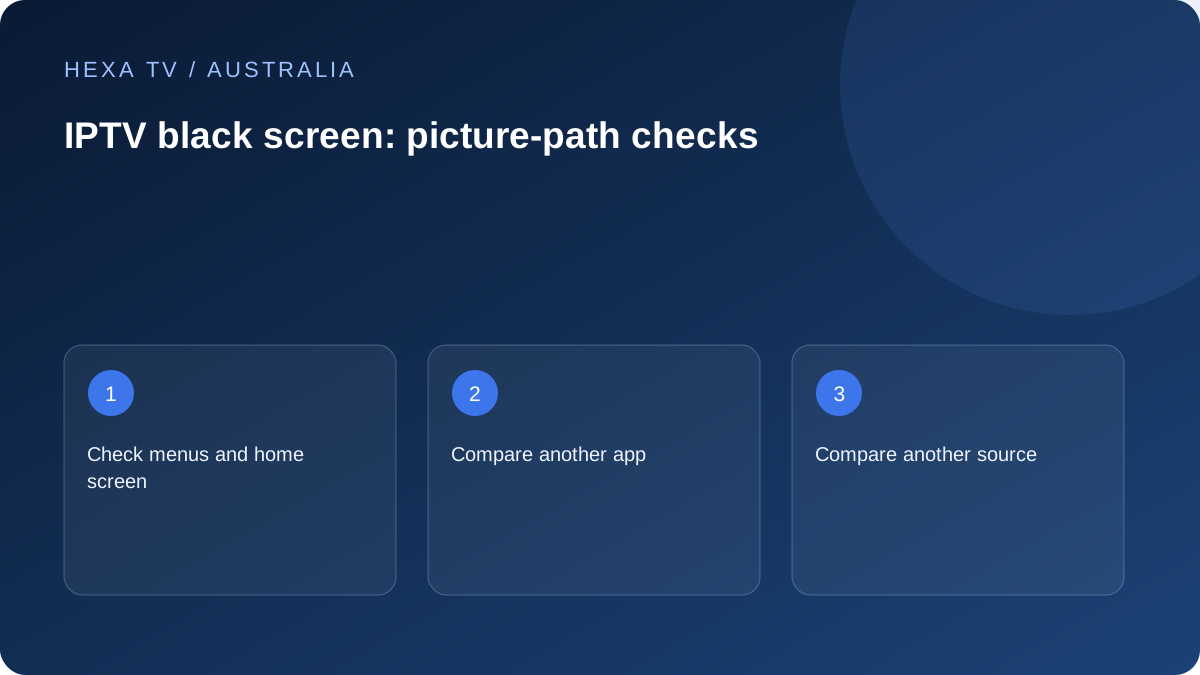
Locate the missing picture
First ask whether the TV can show its own menus and the streaming device's home screen. If neither is visible, check the selected input and equipment path. If menus appear, the display is working at least at that stage.
Record whether the player window is black before login, during catalogue loading or only after selecting a source.
Compare a known working route
Try another app on the same device and another available programme within the affected app. If sound continues while the picture is black, include that detail.
For an external box, keep the TV input, cable and intermediate soundbar or receiver in the report. Do not confuse a built-in TV-app failure with an HDMI-device failure.
Choose the next team from the evidence
A source that is black across supported devices needs a content-provider investigation. A fault only on one device or display path needs the corresponding app or hardware details.
Preserve the configuration that still works. Repeated full resets can erase useful account and favourites information without resolving the first failing stage.
Record the screen state before restarting
Is the television reporting no input, showing the streaming device's menu or displaying player controls over an empty video area? Try the ordinary Home control and listen for programme audio. The presence of menus or sound gives support a clearer starting point than the phrase nothing works.
Check whether the problem began after switching HDMI input, moving a box, updating an app or changing a display setting. Record that sequence without assuming the last change caused the fault. A recent change is a useful lead, but the comparison still needs to show which part of the picture path is affected.
Follow the branch that matches the observation
Keep the account and network unchanged while making the first picture-path comparison.
| Screen state | Bounded next check | Avoid initially |
|---|---|---|
| No Signal from the TV | Input selection, supported power and physical connection | Resetting a programme account |
| Device interface visible | Another available source in the same app | Replacing the television |
| One app has black video | A supported second app on the same device | Router-wide DNS changes |
| Only an external screen is affected | Supported display connection and output mode | Assuming the source catalogue is empty |
| Blackout occurs at playback transitions | Device documentation on format changes | Calling every brief transition an outage |
| Problem disappears without an HDMI accessory | That accessory's supported mode and settings | Declaring all cables defective |
Use the official recovery for the connected hardware
Amazon's Fire TV blank-screen guidance covers the selected input, connection equipment and a supported direct television connection where intermediate audio equipment is involved. Apple's Apple TV guidance separately addresses HDMI, resolution and format-matching behaviour. Use the one that matches your device.
Do not try a remote-button recovery sequence copied from another generation or brand. Identify the exact model first. If the menus are visible, keep a note of the existing output mode before selecting a different supported option. If they are not visible, follow the manufacturer's documented recovery process rather than navigating blindly.
Test the lounge-room HDMI chain as a chain
A streaming box can connect through a soundbar, receiver, switch or adapter before reaching the television. Write down every stage and its selected port. For a supported direct connection test, preserve the original arrangement and compare the same item without the intermediate stage.
A successful direct result points towards that stage's role, but does not distinguish unsupported format, wrong input, configuration or hardware failure on its own. Consult its official manual and support with the exact observation. Avoid purchasing an expensive replacement simply because removing the stage once changed the result.
Recognise a brief mode change without dismissing a lasting problem
The official Apple and Amazon guidance notes that certain format transitions can briefly blank or flicker the display. A short change when playback begins is therefore different from a picture that remains absent for the whole programme. Record duration and trigger in ordinary language rather than inventing a technical diagnosis.
If the blackout occurs repeatedly mid-programme, compare another available source and a supported alternative output mode where the manufacturer recommends it. Preserve the original values. Do not stack changes to resolution, dynamic range, audio and network settings before checking what any one change achieved.
Investigate an app-specific black picture
When the device interface and other apps remain visible, collect the app version and exact programme identity. Test whether a second item in that app plays. If one film fails at the same position, include that position; if all items fail immediately, say that instead.
Before reinstalling, make sure the app is still available in the official store for the model and that account access can be restored. Clearing data may erase settings without fixing an unavailable source. Use the publisher's current instructions and keep private credentials out of screenshots sent for help.
Prepare a picture-path report
A useful report names the television, external device, app, HDMI stages and selected input. It says whether TV menus, device menus, player overlays and audio are present. Add the local Australian date and time for a programme-specific issue so the service can match its own records.
For example, a fictional note might say: 'Lounge-room TV menus visible; streaming box visible directly connected; picture disappears only through the receiver at the selected mode; same source used throughout.' That describes an observation, not a proven faulty receiver. The next useful request is for the equipment's supported arrangement and configuration.