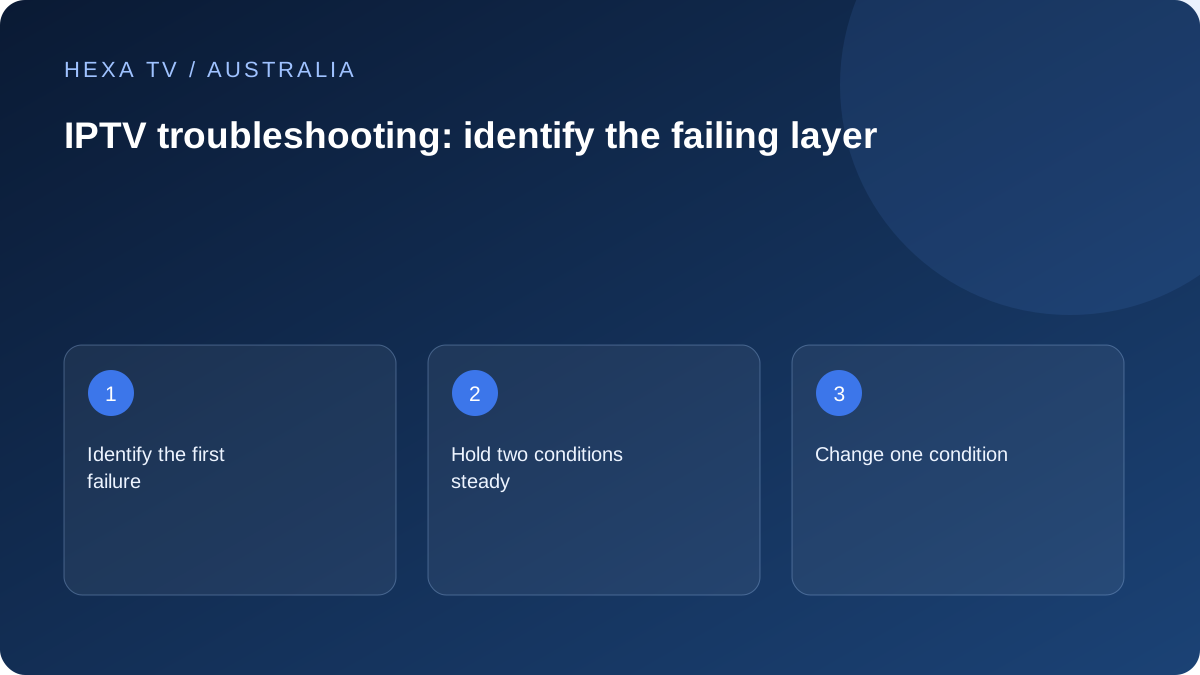
Name the first failed stage
Does the device home screen appear? Does the app open? Is the account accepted? Does the catalogue load? Does a source play? Start with that sequence and stop at the first failure.
A black HDMI input, rejected password and pausing video may all be reported as a broken service, but they need different evidence. Record the exact symptom before changing settings.
Keep one working control
Find something that still works: another source, another app or the same account on a supported second device. Keep the comparison within the account's permitted connections.
A working official broadcaster app can show that one path is functioning, but it does not prove that every source and codec uses the same path. Treat the observation as a control rather than a universal verdict.
Choose a bounded next test
Keep the untouched conditions visible in your note. This makes the result useful to whichever support team investigates next.
| Pattern | Hold steady | Change or verify |
|---|---|---|
| Only one source fails | Device and network | Another available source |
| Only the bedroom TV struggles | Source and account | Supported wired or nearer-router comparison |
| Login is rejected | Verified provider endpoint | Account state and input method |
| The second session stops the first | App and device setup | Permitted concurrency and active sessions |
| All guide entries shift | Programme and catalogue | Actual Australian timezone and player offset |
| Sound fails only through soundbar | Programme and player | TV-speaker baseline |
Separate NBN access from the home network
If unrelated services struggle on a wired device, prepare the access type, times and results for the retail internet provider. If the comparison improves only when Wi-Fi is removed, investigate local coverage and equipment.
Do not interpret every error as a reason to change broadband plans. Router-wide DNS, firewall and regional changes can affect the rest of the household and should not be speculative first steps.
Preserve evidence before removing data
Record versions, errors and relevant settings before an update or reinstall. Determine whether favourites, credentials or recordings are stored locally. Use supported backup or export methods without exposing private URLs.
A targeted app restart or documented update differs from clearing all data or resetting an entire television. Match the action to the observed trigger and keep recovery possible.
Send a report with the Australian timezone
Include the exact source or programme, local date and time, device, app version, connection and one controlled result. Redact passwords, complete playlist links and activation tokens.
Ask the relevant team about the next step: publisher for a repeatable crash, content provider for account or source availability, retail internet provider for its connection. Final HexaTV support hours have not been established, so this guide makes no response-time promise.
Choose a branch instead of performing every possible reset
Use the first failed stage to select a detailed guide. If the device has no picture, account troubleshooting is premature. If the guide is wrong but video plays, the household connection is not the first setting to erase. A short branch decision reduces both disruption and the number of new variables introduced.
The table gives examples of where to go next. It is a triage aid rather than a diagnosis of a particular Australian provider.
| Observed stage | Investigate next | Keep unchanged initially |
|---|---|---|
| No HDMI menus | Input, power and supported output path | Content-account credentials |
| App repeatedly exits | Publisher and device recovery instructions | Working source configuration |
| Account is rejected | Current account state and supplied sign-in method | Router-wide settings |
| Import fails before entries appear | Supported playlist input and response | Guide offsets and audio formats |
| One source freezes | That source on a controlled alternative route | Other working channel mappings |
| Several services fail throughout the house | Retail connection and local network | Unrelated subscription choices |
| Only programme times are wrong | Actual location, clock and listing identity | Video quality and broadband plan |
Understand the difference between restart and data removal
A restart and a factory reset are not equivalent. Before using a recovery option, find out whether it removes sign-in, favourites, local downloads or other apps. Google's Google TV guidance specifically warns that removing the only account can automatically factory-reset the television. A seemingly simple account action can therefore have wider consequences.
Use the manufacturer's current instructions for the actual model and preserve a recovery route. Where an app update is supported, record the old and new versions. If a reset is genuinely required by support, agree which information must be saved first rather than discovering afterwards that the household can no longer sign in.
Use built-in diagnostics for the actual device
Amazon documents an on-device network-status tool for Fire TV, including access from its Network settings and the remote's Play/Pause control. Supported models can expose additional diagnostics. Use what your device actually offers and keep the result with the observed fault.
That result is one piece of evidence, not a verdict about every internet service. A successful connection test can coexist with a source-specific error. Conversely, a failed local connection check deserves attention before changing a content subscription. Do not copy a Fire TV menu path onto a Samsung, LG or Apple device that uses different controls.
Write a support log in Australian local time
For example: 'Tuesday, 20:15 local time in the stated city; lounge-room TV app opens; account accepted; one live source freezes; another available source plays. At 20:25 the affected source also fails on a supported tablet on the same home network. No network settings changed.' These are fictional details illustrating a useful format.
Add actual app versions and error wording, and identify the timezone rather than writing only evening. If the second comparison uses mobile data, say so; otherwise support may assume the network stayed constant. Keep credentials, activation codes and private playlist addresses out of the log.
Finish with a clear next owner and a recoverable setup
Send an account or catalogue question to the content service, an app crash to the publisher or device support, and a shared connection problem to the retail internet provider. The evidence can cross those boundaries, but the request should state what you need that team to check.
Restore unsuccessful experimental settings and preserve a working route where possible. A temporary workaround should be labelled as a workaround, not reported as a proven repair. If support needs another comparison, ask what variable it is intended to isolate so the next action adds information instead of repeating the same failed attempt.