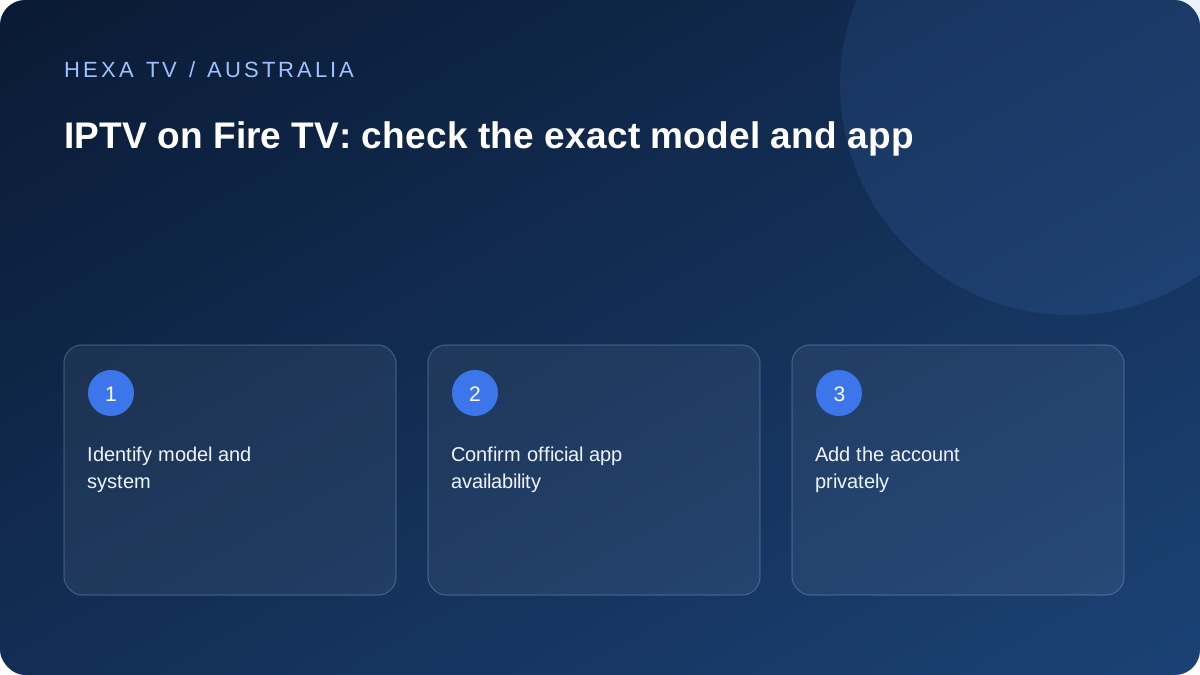
Check the Fire TV model against the Australian app
Read the full product name and software version from the device information. Do not apply an older Fire TV tutorial to a newer system merely because the remote looks familiar.
Find the provider-supported player in the device's official store and verify its publisher. Check any Australian broadcaster apps the household also needs separately; support for one app says nothing about the others.
Prove the display before adding the subscription
Use the device home screen and a known working source to confirm power, the TV input and sound. Then install the player and add the documented account method. This sequence gives a clear first failing stage if something goes wrong.
Write down whether the fault appears during installation, account acceptance or video decoding. Avoid replacing the whole setup after a single black stream.
Test in the installed position
A lounge-room stick can have different wireless conditions behind the television than a phone in the open. Compare a supported wired or alternate placement test if playback is unreliable.
Check the remote tasks used daily: favourites, guide, subtitles and returning from standby. If the required app is not supported, resolve that choice before purchasing a long term; this guide does not assume an unsupported installation route.
Begin with the actual Fire TV generation
Read the full device identity and software version before following any installation guide. The Fire TV name spans models and software environments; a method shown for another generation is not automatically appropriate.
Keep the device's genuine Australian store and account context. If the required player is not offered for the exact model, ask the publisher or provider for a supported alternative. Changing region or using an unrelated package does not establish legitimate compatibility or Australian catalogue entitlement.
Evaluate the complete Australian app requirement
List the IPTV player alongside the official broadcaster apps the household expects to use. Verify each independently through the broadcaster and official app information. An account that works in one player does not tell you whether an older device still supports every other service.
This matters before purchasing hardware. A low-cost device can be poor value if it solves one subscription problem but makes everyday local viewing awkward. Include the remote, input switching and any separate player licence in the comparison.
Use a clean display baseline
Confirm that the Fire TV home interface appears on the selected television input and that a known available source has picture and sound. Keep the power arrangement consistent with the device guidance. An external audio system should be recorded as part of the path.
If the home screen itself is frozen, use Amazon's model-appropriate support information. If the home screen and other apps work but one player does not, retain that distinction. A provider password change cannot repair an incorrectly selected HDMI input.
A setup record for the lounge-room device
Do not include credentials in this shareable record. It is designed to make a later support report specific.
| Item | Detail to retain |
|---|---|
| Hardware | Full Fire TV model and system version |
| Display path | TV model, input and any soundbar or receiver |
| Software | Player name, publisher and version |
| Content method | Supported account type without its secret fields |
| Connection | Actual Wi-Fi or supported wired path |
| Observation | Source, action, local date and timezone |
| Recovery | Official support route and non-secret reference |
Introduce the account after software is confirmed
Read whether the player requires a separate licence and what its activation actually purchases. Then enter the provider's verified method, keeping a playlist address distinct from server-and-credential fields.
Test one source before importing an elaborate guide or favourites layout. If the catalogue loads but playback fails, preserve that outcome. Repeating the installation can erase the useful distinction between an import problem and a decoding or delivery problem.
Test the installed network position
A phone next to the router does not measure the Fire TV's path behind the television. Record the room and the active connection. Where the model supports it, a safe temporary Ethernet comparison can help examine the wireless contribution.
Use the same source and ordinary viewing period. Note other traffic and whether a second session is permitted. Do not diagnose NBN access from a single device result or buy another account connection to fix a local Wi-Fi problem.
Verify the remote routine with the viewer
Ask the viewer to open the player, find a favourite, inspect the guide and return to the TV's other services. Check subtitle readability from the normal seat and the sound output actually used.
Keep interface difficulties in the result even if the video itself plays. A setup can be technically functional and still unsuitable for someone who needs a straightforward remote sequence. A smaller favourites list or clearer input label may be a more useful improvement than another hardware purchase.
Make updates and resets proportionate to the symptom
Before an update, note the current app and system versions and the repeatable trigger. Use official support instructions for restarting or managing application storage. Identify what will be removed before clearing data.
Preserve any local favourites or private account configuration through the supported process. A factory reset is a much broader action than restarting one player and should not be a routine response to a single source failure. Keep the last working setup available where possible.
Escalate with scope and timezone
For a support request, state whether the problem affects the device home screen, one app, all sources or one programme. Include the Australian time and timezone, connection type and one controlled comparison.
The guide has not tested a particular Fire TV or certified a player on every model. It provides a complete setup and diagnostic path informed by official documentation, with the actual hardware result still to be recorded for the household.