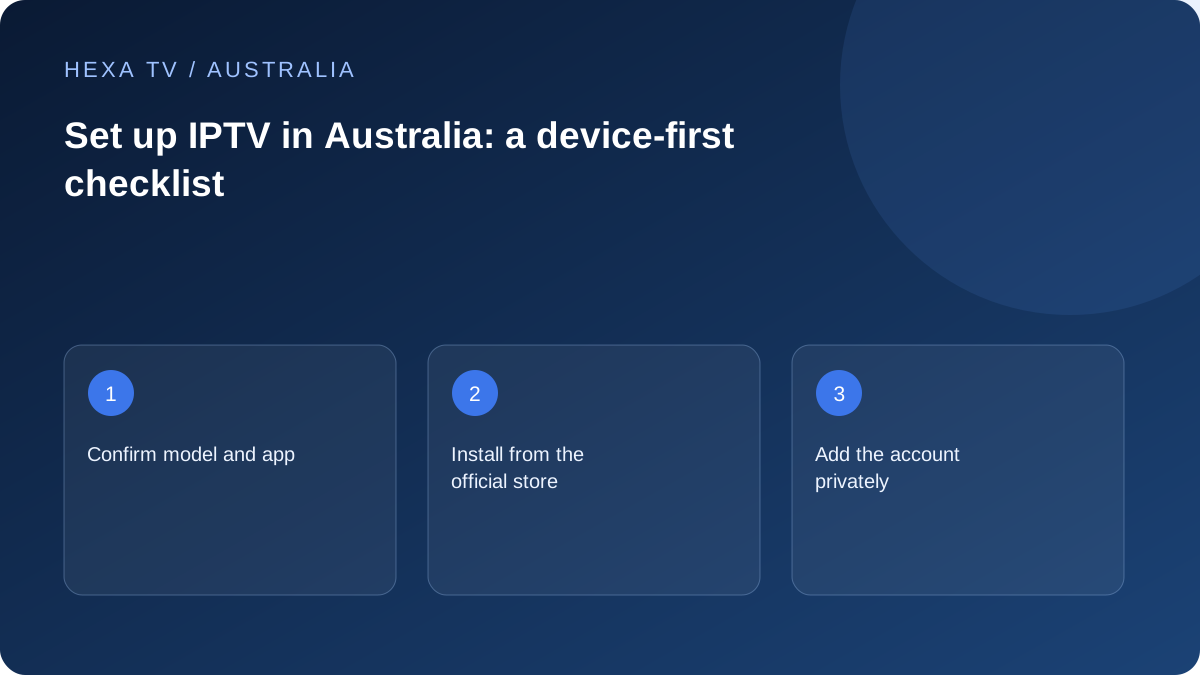
Write the Australian setup card first
Record the exact TV or streaming-device model, system version and app named by the provider. Add the internet access type and how the device reaches the router. Keep the local timezone in any dated test notes.
List the household's other essential viewing apps, including official Australian broadcasters where relevant. The chosen hardware should be assessed against the whole viewing routine, not only the proposed IPTV player.
Confirm the account and app are different products
Check whether the player has its own licence or paid features. A content subscription may not cover that charge, while a player purchase may supply no content account at all. Preserve separate receipts and support details.
Ask the provider for the exact supported login type. A playlist address, server with credentials and portal method are different setup forms. Do not guess between them from an online tutorial for another service.
Install through the documented device route
Use the actual device's official app store or the publisher's supported distribution method. Verify publisher identity and current compatibility for the genuine Australian region. A phone version or another generation's installation is not a substitute.
If the intended app is absent, resolve that compatibility question before buying a long term. Do not put credentials into a similarly named alternative merely to make the setup proceed.
Create one working baseline
On one device, enter the verified account details privately and wait for the catalogue result. Open a known available source. Confirm moving picture, the intended sound output and basic remote control.
Record each milestone separately: app installed, account accepted, catalogue loaded and source playing. If setup stops, the first missing milestone identifies the next support question.
Check the programme guide in local time
Verify the device's actual Australian timezone and clock before adjusting the player's guide. Different states and daylight-saving arrangements make a generic fixed offset unsuitable.
Compare one familiar programme with the listing. If only one channel differs, investigate mapping or source data; if all differ equally, check clock and offset settings. Avoid correcting the same hour in several places.
Evaluate ordinary household tasks
Build a short favourites list, try subtitles on a source that supplies them and exit and reopen the app. Ask the person who will use the TV to find a programme with the actual remote. A setup that needs constant assistance is not finished simply because one picture appeared.
If child or guest controls are needed, configure the supported restrictions and test the intended profile. Remember that an app restriction may not cover every other service reachable from the TV home screen.
Add a second screen deliberately
Check the account's simultaneous-session rule before opening another device. Add one session at a time and note what changes. If the second starts but the first stops with a limit error, the account allowance is the first question.
If several sessions are permitted but struggle, compare the home-network conditions. A higher stream allowance does not increase NBN capacity or improve the Wi-Fi link to a bedroom.
Preserve a safe handover record
Keep app name and publisher, model, versions, date, provider support route and a non-secret account reference. Put credentials in a separate private store, not a shared setup document or screenshot.
Account activation follows payment verification. Prepare the intended device and supported app before entering the delivered access details. No installation described here is claimed as a HexaTV hands-on test.
Use a stop-point checklist when the first setup fails
Mark the last completed stage and the first incomplete one. If the device store installs the player but the account is rejected, investigate the verified login and account state. If the catalogue loads but one source fails, preserve that result instead of repeating installation.
Keep one known working app or source available as a control. A successful official broadcaster app shows that one route works; it does not certify every codec, player or provider endpoint.
The stop-point approach prevents several changes from obscuring the evidence. It also makes a support request shorter because the recipient can see where the process stopped.
Set up the sound and display in two stages
Begin with the simplest supported path, such as the viewing device and TV speakers. Confirm picture and sound before adding a receiver, soundbar or external-display arrangement. Then test the intended final path with the same source.
Record the model and connection order if the result changes. A black screen after adding an intermediate device is not the same as an account that never signs in. A source audible through TV speakers but not the soundbar needs audio-path evidence.
Use only model-specific supported settings and retain the original values. A generic instruction for another television can introduce a different failure.
Make a usable handover for another person
Have the everyday viewer turn on the TV, select the right input, open the app, find a favourite and return to ordinary viewing. Keep a short note using the actual on-screen labels and remote buttons.
If one step repeatedly causes trouble, simplify that part before adding more features. A smaller favourites list or clearer input label may improve the experience more than importing another category.
Include the household's accessibility and child-profile checks. An app restriction may not apply to other services on the same television, so verify the actual route that the viewer can reach.
Retain what a future update could erase
Identify whether favourites, account details and recordings are local, synced or provider-managed. Use the publisher's supported backup or recovery process and keep any exported file private.
Before clearing data or reinstalling, save the app version and the original symptom. Read the device's distinction between cache and app data rather than assuming they have the same effect.
An update that changes behaviour should be documented with the new version and a repeat of the same baseline. A different programme working is not enough to prove the earlier failure was resolved.
Separate device compatibility from account conditions
A household setup check can show that an available source works with specified equipment on a date. It does not establish distribution rights, a complete Australian catalogue or a long-term quality guarantee.
Use this sequence with your own authorised account and the applicable offer. Account activation follows payment verification. This guide does not claim first-hand device testing.