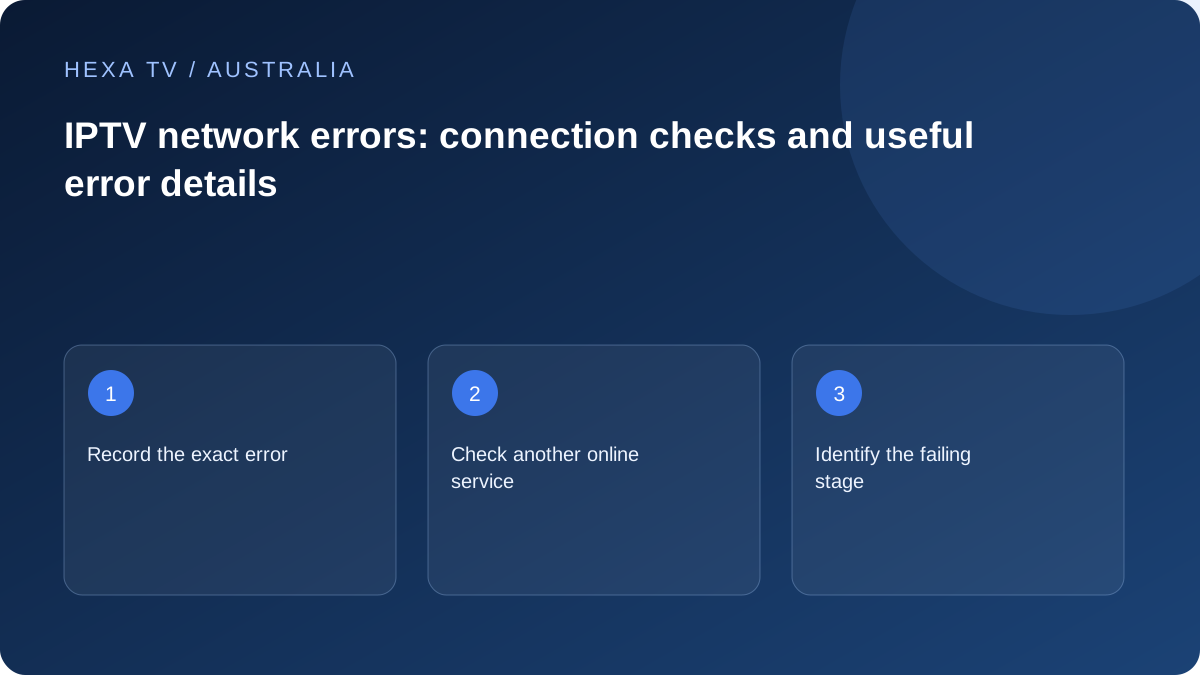
Check the viewing device's connection
Confirm the actual network and whether another online service opens. A Wi-Fi icon does not prove that the connection has completed any required sign-in or reached the internet.
For shared accommodation or a managed network, use the owner's permitted access process instead of changing controls you do not administer.
Identify the service stage
Does the error occur before account acceptance, when loading the catalogue or during video delivery? Keep the exact text and verified provider endpoint private in your record.
If only one service fails, begin with its account and endpoint support. If many services fail across devices, investigate the home and retail internet path.
Use comparisons before router changes
A supported wired test or brief alternate-connection test can narrow the scope. Label the device, source, time and Australian timezone.
Do not assume an error proves blocking or requires a DNS, firewall or port-forwarding change. Give the responsible provider the reproducible observation first.
Separate the TV's connection from the retail internet service
Check the affected device's ordinary network-status screen. Confirm the intended network or wired connection and record the reported state. The nbn access service, the retail provider, the home router and the final Wi-Fi link are related but distinct stages.
A television joined to Wi-Fi has not necessarily demonstrated access to every remote service. A player showing a network warning has not necessarily demonstrated an nbn outage. Keep those two facts separate while choosing the next comparison; this avoids changing a broadband plan in response to an app-specific account or endpoint problem.
Describe where the request fails
An error before sign-in differs from one during catalogue loading or after video starts. Record the exact message and code, if any, plus the local date and timezone. Use the publisher's explanation of a code where available rather than assigning a cause from an unrelated forum post.
| Observed failure | Controlled check | Relevant evidence |
|---|---|---|
| Cannot join the home network | Correct saved network and local access status | Device message and whether other devices join |
| Several services unreachable | Another device on the same household connection | Scope across apps and devices |
| Only account request fails | Current supported login method | Error stage and account state |
| Only source import fails | Supplied endpoint and player support | Redacted source type and import outcome |
| Video fails after catalogue loads | Another authorised available item | Programme-specific result |
| Wi-Fi fails while cable works | Same supported device and source | Local wireless contribution |
| Alternative mobile route works | Short allowance-aware comparison | Two network paths changed, not a proven nbn diagnosis |
Use the device's own tools where available
Fire TV's official support describes an on-device network-status tool and additional options on compatible models. Use those controls for Fire TV rather than borrowing steps from a different television. Keep the reported result with the app's symptom.
A connection test can be successful while one content endpoint remains unavailable. Likewise, a single low measurement does not describe the whole evening. Note the time, device and route, and repeat only the comparison relevant to the fault. The aim is a reproducible observation, not a collection of unrelated speed-test screenshots.
Choose a local-path comparison that changes one thing
A safe supported Ethernet comparison on the same device can help separate Wi-Fi from the rest of delivery. If that is not practical, a nearer-router test may still be useful, but record that the location changed. Keep the same available source and quality option during the first comparison.
nbn's in-home guidance is relevant to router placement and connected equipment, but does not diagnose a particular app. If unrelated services struggle on a wired device as well, the retail provider needs that broader evidence. If only the distant TV is affected, investigate the local path before assuming the access network must be upgraded.
Keep security and household access intact
Do not remove Wi-Fi security or disable protective network settings merely to see whether an IPTV warning disappears. Use the router manufacturer's supported configuration process and preserve original values before a justified change. Apple's guidance explicitly discourages unsecured networks, including temporary ones.
If support suggests DNS, firewall or access-control changes, ask which hypothesis the change tests and how to reverse it. Make sure the person administering the household network agrees, because other devices may be affected. An account-bearing playlist address should never be placed in a public network-testing service.
Restart shared equipment only with a clear purpose
A supported restart can be appropriate for a wider connection issue, but first tell other household users. Calls, work sessions and uploads may be interrupted. Follow the retail provider's instructions for the actual modem and router rather than pressing an unfamiliar reset button.
After reconnection, repeat the same small comparison and record the result. If nothing changes, do not keep restarting without new evidence. Provide the retail provider with the access type, times, devices and wired-versus-wireless observations it can use to investigate the service.
Finish with a precise escalation
For a source-specific endpoint issue, ask the content service about the supplied address and account. For a repeatable app error, provide the publisher with its version and reproduction steps. For a household-wide connection failure, send the retail provider the wider pattern.
A fictional Australian report can say: 'At the stated local time, two devices cannot use several unrelated services; both Wi-Fi and a supported wired test fail; router status recorded; no advanced settings changed.' That is materially different from one programme failing while every other app works. Preserve whichever result you actually observed.