Assess the screen as a display
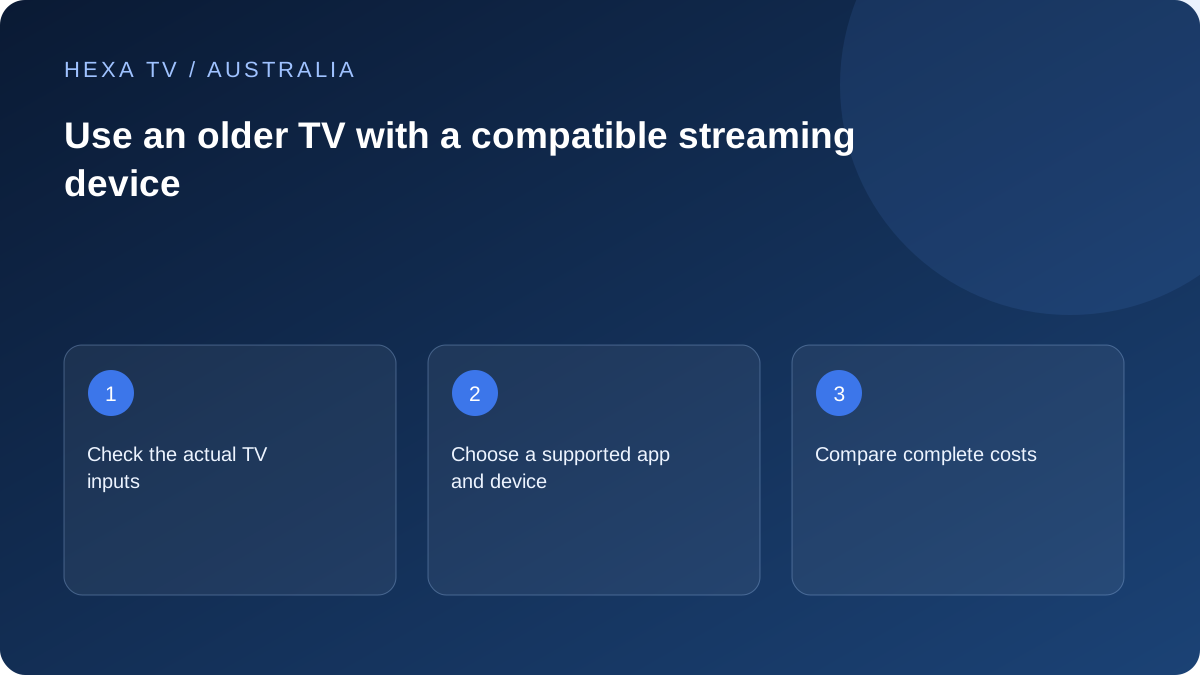
Find the television's actual input types and supported modes in its manual. The age of the TV alone does not answer whether a current streaming device can connect.
Check the intended hardware output and power requirements before buying an adapter. A connector shape is not a complete compatibility specification.
Choose the Australian app set first
List the IPTV player and official broadcaster apps the household needs. Find a device model that currently supports those applications in Australia, then confirm its connection to the television.
Price the box, any player licence and the content subscription separately. The EUR subscription prices are not a complete Australian hardware-and-service package.
Test the human setup
Try switching from existing broadcast viewing to the external device, changing volume and returning to the familiar input. Two remotes may introduce more difficulty than expected.
Use the normal seating position to assess text and subtitles. A 4K-labelled box cannot increase the physical resolution of the old panel, so buy for supported functions and usability.
Assess the television as two separate components
The panel and inputs can remain useful even when the built-in app platform has aged out of support. Write down the model and available connectors, then inspect the manual's accepted output modes. Do not judge the entire television only by the age of one missing app.
A separate box can supply software while the TV supplies the display, but both ends of the connection must be suitable. An adapter description containing the right connector name is not a complete guarantee of picture, sound or protected-content compatibility.
Start from the Australian services the household uses
List the actual IPTV player and official broadcaster applications that matter. Check ABC iview, SBS On Demand or another required service through its own current device guidance. Support for one app does not establish support for every broadcaster on the same external device.
Freeview's Australian information also belongs in the comparison when the household uses aerial reception and online discovery. Keep the existing antenna route identified. Adding an HDMI device should not leave the viewer unable to find the familiar live-TV input.
A replacement decision sheet
Complete each row before buying. Leave an unresolved requirement visible instead of assuming the newest device covers it.
| Requirement | Information to collect | Decision consequence |
|---|---|---|
| Display connection | TV input and device output specifications | Confirms whether a supported cable or adapter route exists |
| Essential app set | Exact model's Australian store and publisher support | Avoids buying a box that omits a needed service |
| Sound | TV speakers, receiver or headphones actually used | Adds a separate audio-route check |
| Remote operation | Power, input, volume and navigation sequence | Shows whether everyday use is manageable |
| Total equipment cost | Device, necessary adapter and player licence | Makes keeping the TV comparable with replacement |
Prepare power and placement as part of compatibility
Follow the external device's power requirements. A convenient USB port on the television should not be assumed to provide the required arrangement for every product. Keep ventilation clear and place the device where cables are not pinched or stretched.
Check whether the supplied remote can operate the controls the household expects, using the manufacturer's documented setup. Do not promise one-remote operation without confirming it. If two remotes are necessary, practise the sequence and keep both identifiable.
Test the visible desktop or device menu before a programme
First confirm that the television displays the external device's ordinary interface. Then open the supported application and try a programme confirmed as available. If the interface itself is absent, the account catalogue is not the first question to investigate.
Once picture appears, check sound independently and test captions where the source supplies them. A television receiving video may still be using an unexpected audio route or an unsuitable picture mode. Retain the supported baseline and change one setting at a time.
Use the nbn and Wi-Fi arrangement already in the room
The external box may connect differently from the television's built-in network hardware. Record whether it uses Ethernet, Wi-Fi or a mesh point. A supported new box does not guarantee that a weak room-level connection has improved.
If the new device is hidden behind a large screen or inside furniture, review its placement and network guidance. Compare the same available source with a practical supported wired path when needed. Keep account errors separate from local network symptoms so a second purchase addresses the actual limitation.
Retain the working route until the new routine is accepted
Let the regular viewer begin from standby, find a programme, adjust sound and return to aerial or another familiar service. Observe the steps that cause confusion. A device is not a successful household upgrade merely because the installer can operate it.
Before selling or retiring an old box, remove private account access through the appropriate supported process and check whether a paid player licence can transfer. Keep receipts and recovery information private. The goal is a supported, usable arrangement at a justified total cost, not replacement for its own sake.