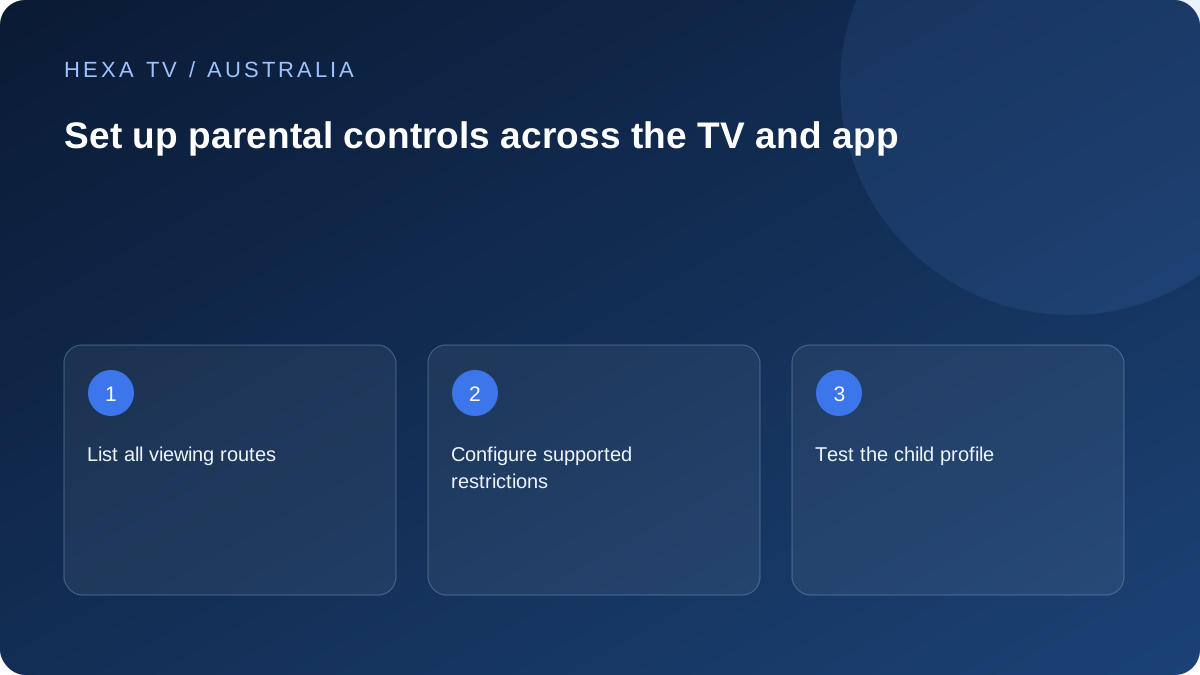
Map the child's possible routes
List the TV home screen, player, official broadcaster apps, store and any browser. Restrictions in one service may leave another route untouched. Decide who manages each account before setting controls.
A hidden adult category or a small favourites list does not automatically prevent catalogue search.
Test the intended profile
After applying the manufacturer's and publisher's supported controls, leave the settings area and use the child or guest profile. Try programme search, profile switching and purchase prompts, then repeat after reopening the app.
Keep adult recovery details private and use a PIN the child is not routinely given for unrelated tasks.
Revisit when the setup changes
A replacement streaming device, a new app or cleared data can change the controls. Add a quick restriction check to the household's setup record after those events.
Controls are one part of supervision, not a promise about every item in a provider catalogue. Confirm the actual content and profile behaviour on the device in use.
Choose a household rule before choosing a PIN
Start with the practical rule: which apps may the child open, what content is suitable, when can viewing happen and who approves spending? Different controls answer different questions. A bedtime setting limits when the device is used; it does not assess every programme inside a permitted app.
Write a small list of the actual viewing routes in your home. A smart TV may have Freeview-related access, several broadcaster apps and an HDMI-connected streaming device. A tablet can add another route with a separate account. Decide which adult maintains each device so a change on one screen is not mistaken for a household-wide update.
Inspect the app inside the child's environment
Google TV documents children's profiles on supported devices, including app choices and profile locking. Its documentation warns that some content restrictions do not cover recommendations or search results delivered directly by apps. This is a reason to inspect the permitted app itself, not a reason to assume the platform controls are useless.
Once the device-level profile is configured, launch each allowed service from that profile. Check its search results, category navigation, account switching and any app-specific child mode. If a player provides only a way to hide a category, find out whether search can still reach its items before treating that setting as an access restriction.
Use a household acceptance checklist
The checklist is intentionally based on actions a child can take with the remote. It does not require watching unsuitable material or completing a purchase.
| Action | Desired result | If the result is wrong |
|---|---|---|
| Leave the child profile | Adult approval where the household requires it | Review the device's profile-lock documentation |
| Open a newly installed app | Access follows the agreed app list | Adjust that device's permitted apps |
| Search within a player | Results follow the intended app restrictions | Inspect app-level controls or remove access |
| Reach a purchase option | The platform requests the appropriate adult approval | Review purchase authentication separately |
| Switch to an HDMI source | The other device has its own suitable setup | Configure that device rather than only the TV |
| Restart after configuration | Essential restrictions remain in place | Document the failure and consult official support |
Keep profiles, ratings and screen counts separate
A provider selling more simultaneous streams is selling a capacity allowance, not necessarily separate child profiles or stronger content filtering. Ask about the actual account features if independent household profiles matter. Four screens using the same credentials may still share the same preferences.
Likewise, a rating shown beside a programme is information, not evidence that a lock is enforced. Test the action the household depends on. If an adult has deliberately allowed an exception in one service, check whether that exception applies only to the selected programme or more broadly. Do not assume all apps interpret a device setting in the same way.
Make the system recoverable for adults
Choose a responsible adult who knows where official recovery details are stored. Keep account recovery separate from the short instructions children use to start viewing. A written reminder can name the app and profile without exposing the PIN or the parent's email password.
If a forgotten code blocks access, consult the correct device or app publisher. A factory reset may erase other settings and still leave an account-level restriction in place. Recovery should restore the intended protections, not leave the household with unrestricted access because the previous setup was difficult to manage.
Review new devices and new habits
Revisit the arrangement when a child begins using a phone, when a streaming stick moves to a bedroom or when another adult adds a broadcaster app. Those changes alter the available routes even if the original TV settings are untouched.
A short check after relevant changes is easier to maintain than an elaborate rule nobody understands. Explain how to ask for help with a blocked programme and who can approve an exception. Technical controls support that conversation; they are not a guarantee about every possible source or a replacement for adult supervision.