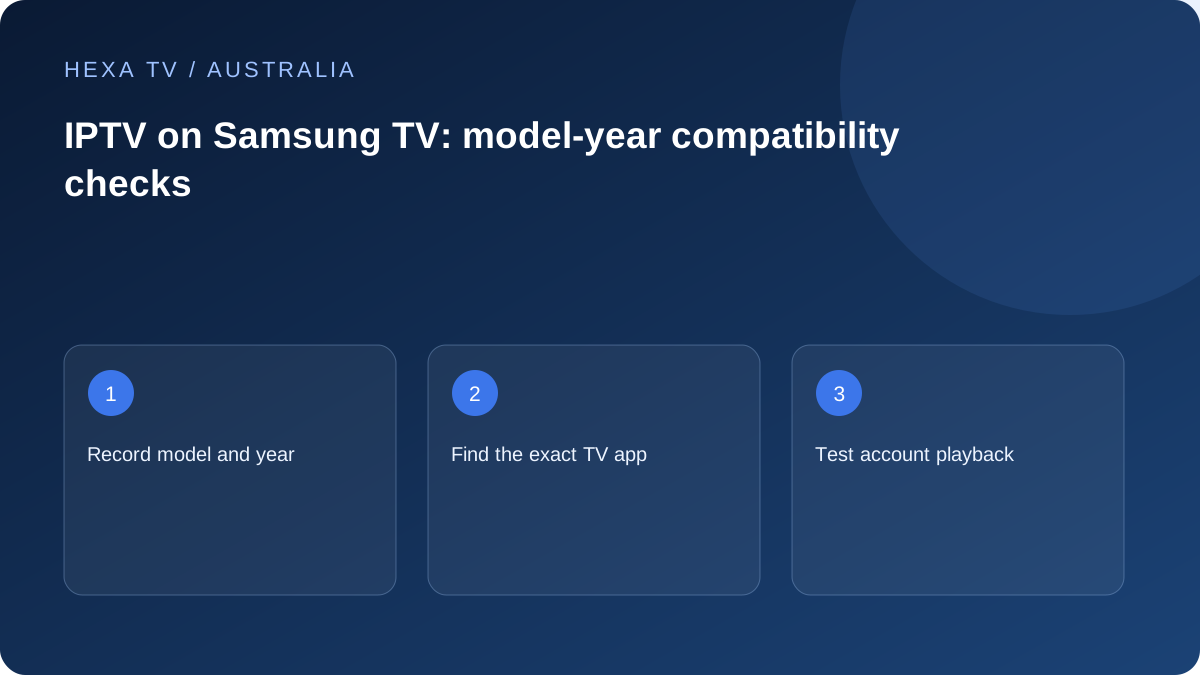
Use the model code as the starting point
Find the Samsung model code and system information, then check the actual TV store for the named player. A Samsung phone installation is not evidence about the television platform.
If the app is absent, ask its publisher about that model and Australian store availability before considering another device.
Separate built-in and external-device routes
A built-in TV player and a streaming box connected by HDMI have different update, remote and display paths. Choose the route intentionally and keep it in the setup record.
Test the chosen route with the account and features the household needs. Do not describe a box's success as a test of the television's native app.
Make the fallback a complete comparison
If the built-in app is unsupported, compare a verified external device with replacing the screen. Include hardware, player fee, input compatibility and the extra remote routine.
Confirm official local broadcaster support on any replacement device as well. A solution that fixes one subscription while removing the family's ordinary viewing may not be the most useful choice.
Distinguish the television platform from a connected box
Record whether viewing runs in a Samsung native application or on a separate device attached by HDMI. The software, update route and network connection can differ completely.
If the household switches between both, label each route in the setup note. A working HDMI picture does not demonstrate the native player, and a native broadcaster app working does not establish the box's output format.
Check the full model code and Australian store support
Use the actual model and system information from the television. A broad product range may contain several generations with different app availability. Consult Samsung's supported installation route and the player's current listing.
Do not change the genuine service region merely to imitate a tutorial from another market. The publisher should identify a supported route for the hardware in use. Resolve a missing essential app before buying a long content term.
Keep Samsung, player and provider credentials distinct
The account used to download software is not necessarily the account used to receive content. A separate player licence can introduce another activation process. Identify which product a prompt concerns before entering sensitive information or paying.
Only use the provider's verified account format. Save a non-secret label, then verify catalogue load and one source. A blank catalogue and a black playing window are different stages and should produce different support questions.
Choose a complete viewing route
Compare the alternatives against all household requirements, including official Australian broadcaster apps.
| Factor | Native TV application | External streaming hardware |
|---|---|---|
| Availability | Exact-model TV listing | Exact-model box listing |
| Controls | Samsung remote and app interface | Box remote and TV input routine |
| Connection | TV network path | Box network and HDMI path |
| Maintenance | TV and player updates | Separate device and player updates |
| Audio | Native output settings | Full external audio chain |
| Extra cost | Possible app licence | Hardware and possible app licence |
| Recovery | TV app data and provider access | Device transfer and provider access |
Evaluate the living-room interaction
Try guide navigation, favourites, back and subtitle controls using the remote the viewer normally holds. Observe the task from the seating position, not just close to the screen.
If the household needs a simple channel-like routine, make the favourites list intentionally small. A large imported catalogue can obscure the usability question. Keep content restrictions independent of convenience lists and test the intended child or guest profile.
Check picture faults at the correct stage
If the television menus appear but one player is black, note which other application works. If only the HDMI route fails, record its input, cable and intermediate equipment. Do not change a valid provider login to address a missing device home screen.
Use model-specific display guidance and retain original settings. A source failing on several supported devices while other sources work needs provider evidence, not an assumption that the Samsung hardware is defective.
Handle sound with a working reference
Find a known audible source through the TV speakers before adding a soundbar or receiver. Check the selected output and any Bluetooth device that may still be connected.
If the external path fails, record its model and connection method. A source track, a player format and the sound system each contribute. Compare one supported setting at a time instead of changing every audio option.
Manage software changes without losing the setup
Before an update, save model and version information with the original error or crash trigger. Check the television's storage information when that symptom is relevant.
Understand what clearing data or uninstalling removes. Retain account recovery privately and preserve locally stored favourites through a supported method. A factory reset is a broad action, not the routine first step for one unavailable programme.
Consider an older television as a display
If a native app is no longer supported, compare a compatible external device with replacing the screen. Verify inputs, power, remote routine and the complete Australian app set before purchasing.
The extra box must solve a documented compatibility need. A higher specification is not inherently useful if the household cannot operate it comfortably or the desired app is still absent.
Send the correct model-specific report
Include whether the issue is native or external, the exact model, system, player, source and Australian time. Add one comparison and what remains working. Remove private playlist addresses and passwords from evidence.
No Samsung hardware review or all-model certification is implied by this guide. Its purpose is to reach a specific, documented household result through official support information and controlled checks.